

A task is anything you ask Biscuit to do: build a new app, add a feature to an existing one, or change how something works.
Tasks give you one place to see what’s waiting, what Biscuit is working on, and what needs your review, across your own work and your team’s.
Where to find your tasks
When you sign in, you land on My tasks. This board shows the tasks created for you or owned by you. Each space also has its own task board. Open a space and select Tasks to see everything happening in that team’s space.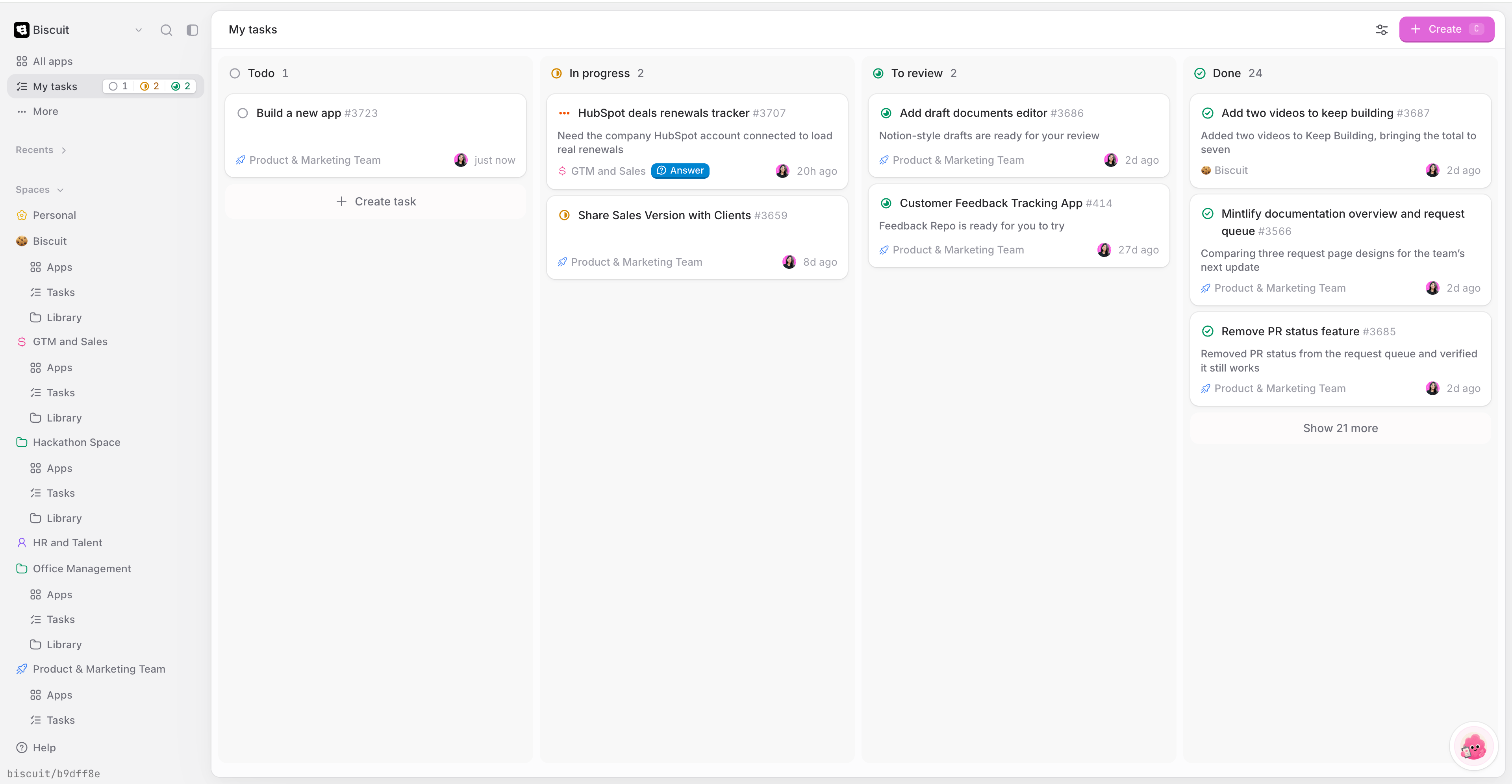
Creating a new task
You can create a task in two ways: from the task board, or by editing an app.1. From the task board
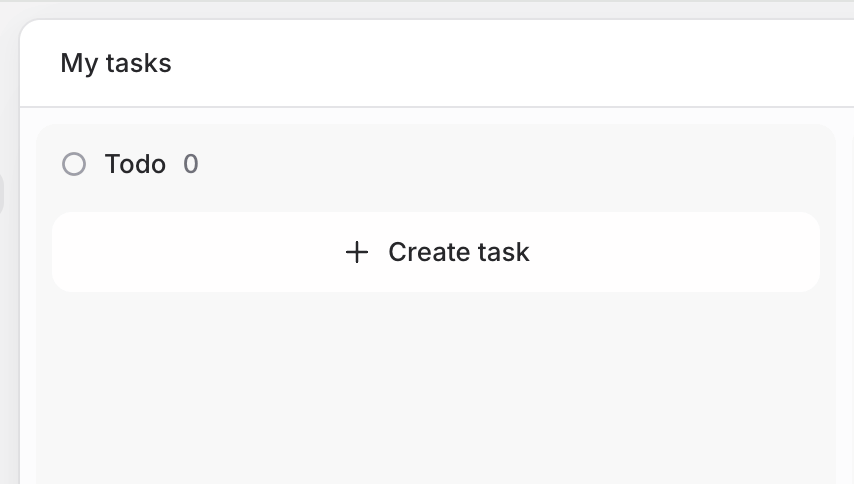
Use this when you want to plan an app or a feature, whether you start it now or later.- Click Create task.
- Describe what you want. For example: “Build an invoice tracking tool for our operations team that generates invoices from the template I’ve attached.”
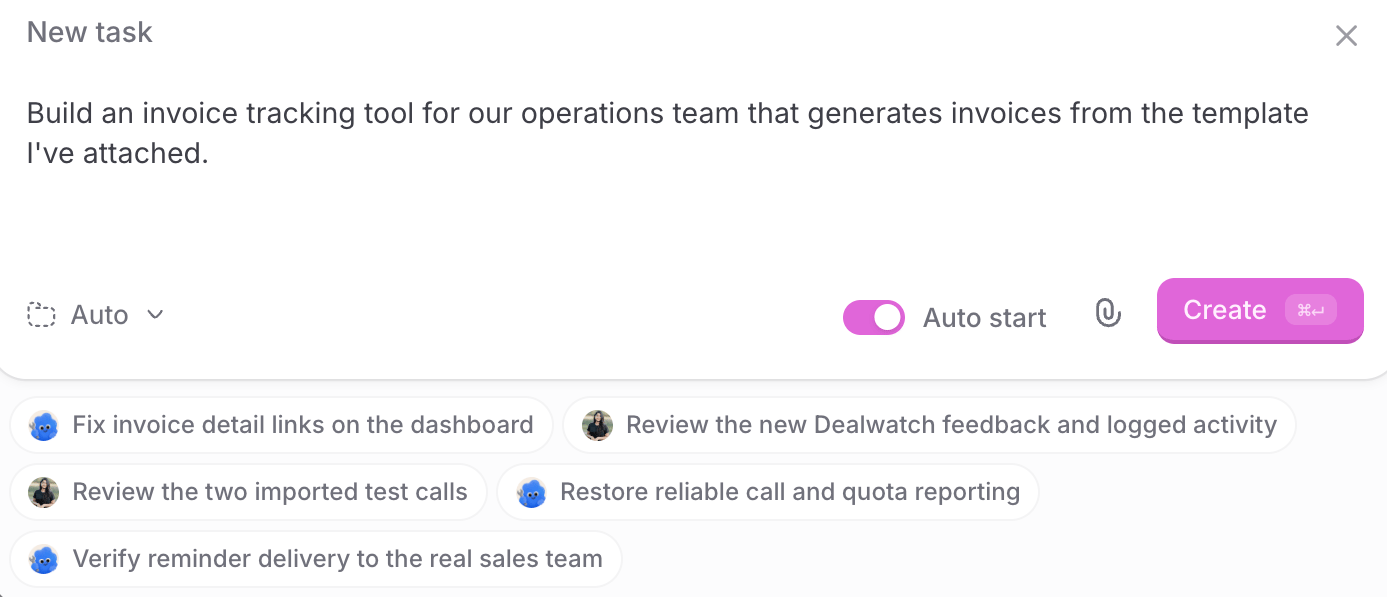
- Optionally, click Attach file to add reference material, such as a PDF template, a screenshot, or a spreadsheet.
- Choose the space the task belongs to, for example Accounting team. Leave it on Auto and Biscuit picks the space based on what you asked for.
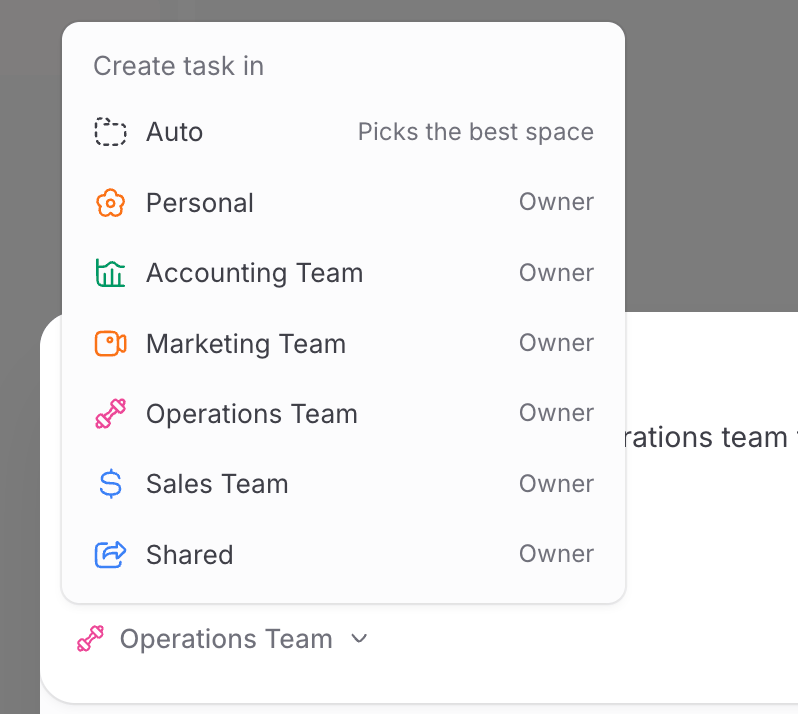
- Turn Auto start on to have Biscuit start building as soon as you create the task. Turn it off to keep the task in Todo until you’re ready.
- Click Create. Biscuit may suggest improvements to your description before you create the task. Use them or ignore them.
2. By editing an app
Every change you ask for in an app also becomes a task.- Open the app and click Edit.
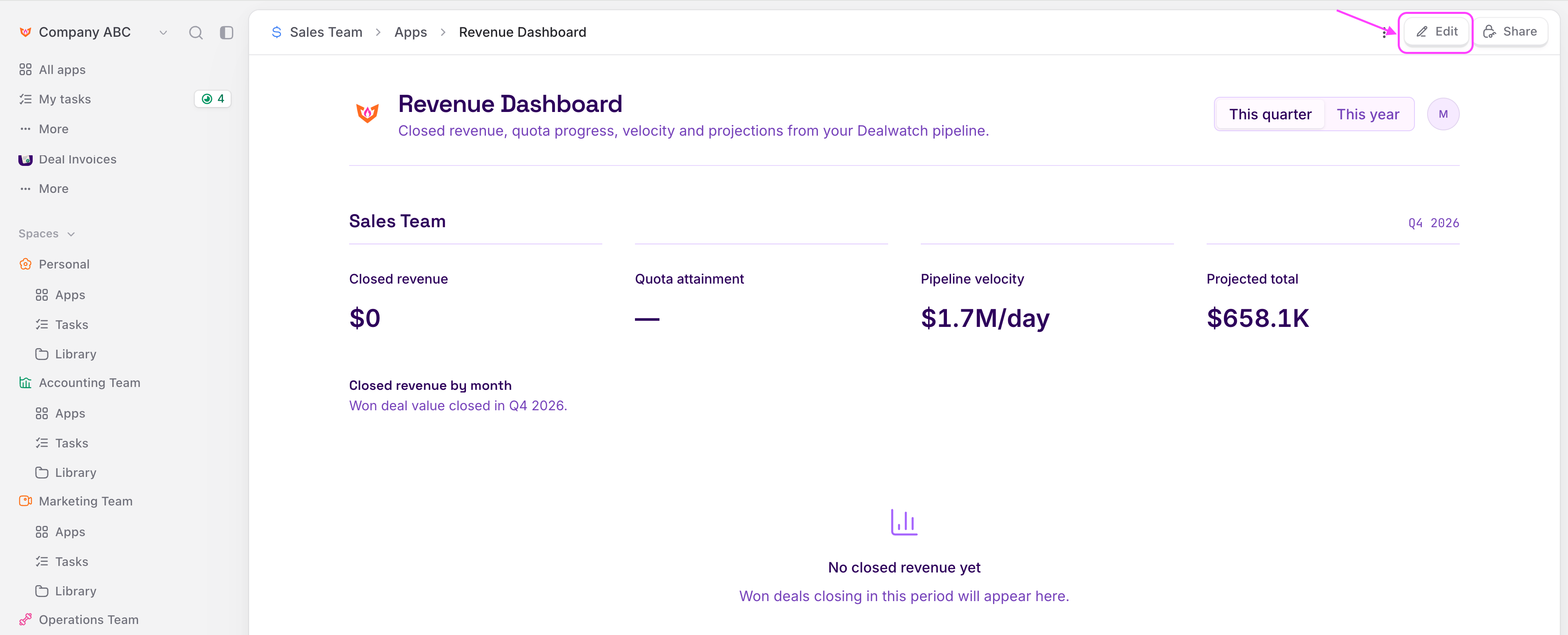
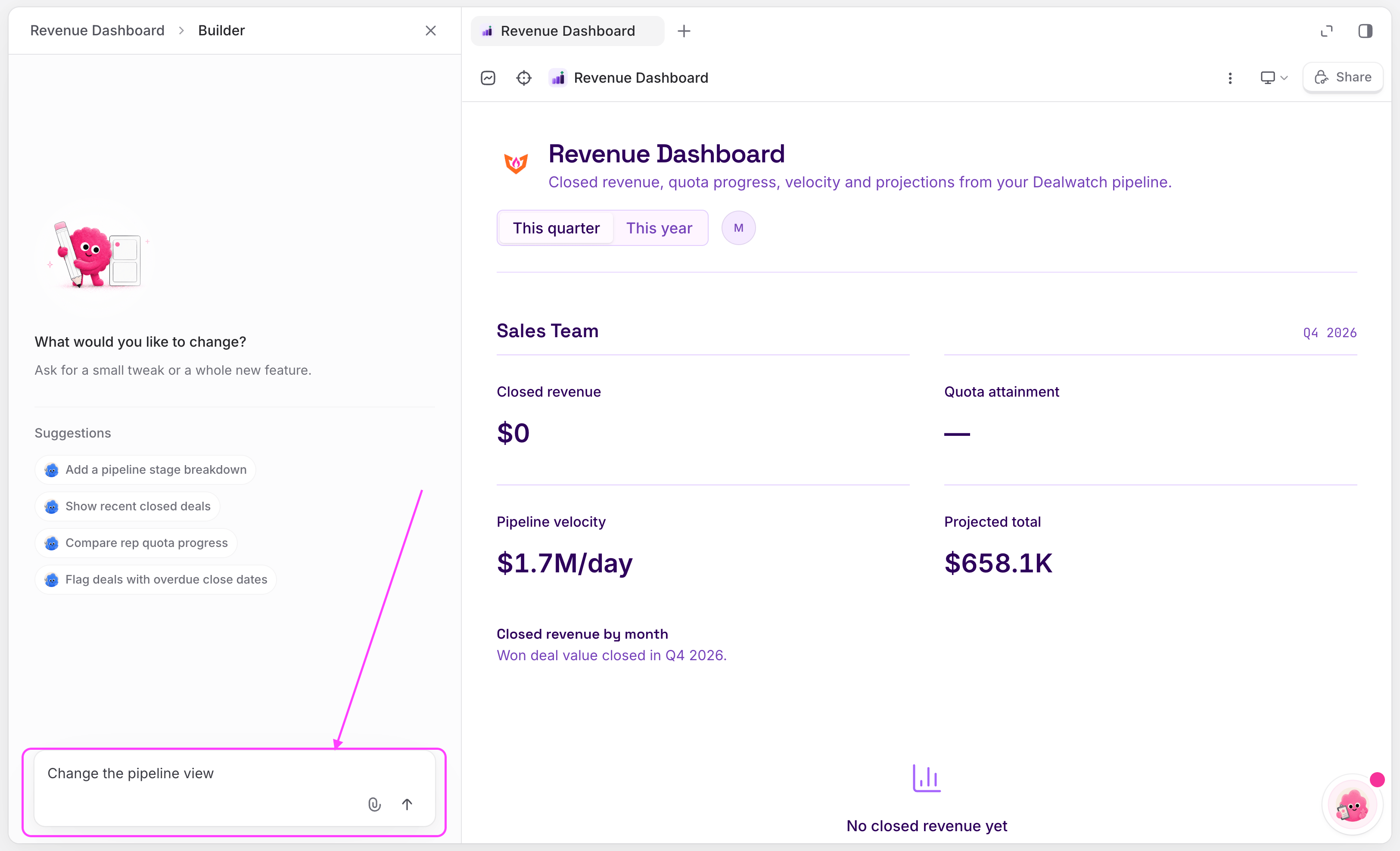
- Type the change you want_._ Attach files if needed.
- Press Enter to send. The change appears as a task on the task board of the app’s space, so your team can see what’s being changed and by whom.
Task stages
Every task moves through four stages:| Stage | What it means |
|---|---|
| Todo | Not started yet, or you’re still shaping it. |
| In progress | Biscuit is working on it. |
| To review | Biscuit has finished and needs you to check the changes or answer a question. |
| Done | The task is complete. |
Reviewing and approving a task
When a task reaches To review, Biscuit is waiting for you.- Open the task. It shows a preview of your app with the change applied. Go to the screen the task affected and check that it now works the way you asked. For example, if the task removed a filter from your app’s home screen, open the home screen to confirm the filter is gone.
- If the change looks right, choose how to finish the task:
- Approve and Publish: the task moves to Done and the change goes live in your app straight away.
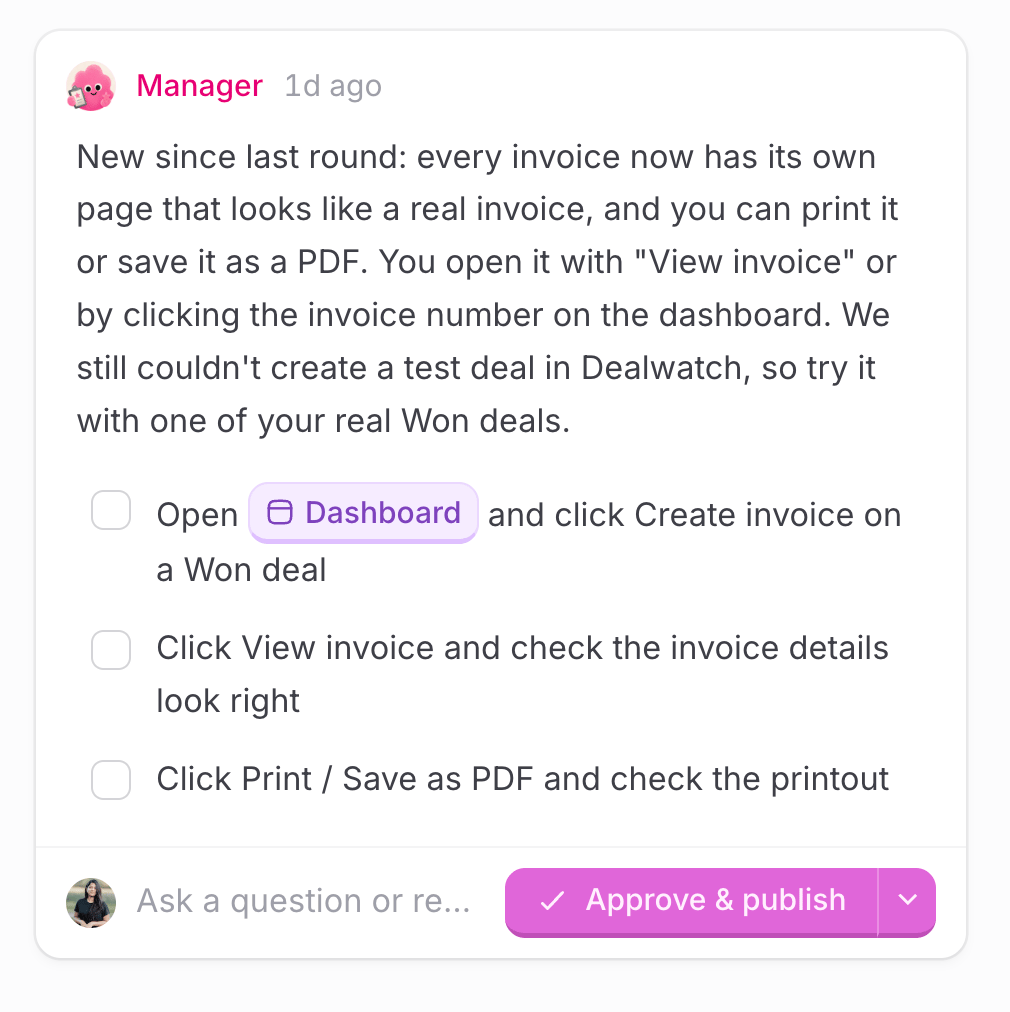
- Approve: the task moves to Done, but the change isn’t published yet. Use this when you want to make more changes through other tasks and publish them all together later.
- Approve and Publish: the task moves to Done and the change goes live in your app straight away.
- If it’s not what you wanted, tell Biscuit in the task and it goes back to In progress and returns to To review when the new version is ready.
Filtering and sorting the board
When several tasks are running at once, use the filters at the top of the board:- All tasks: every task, whether you, a teammate, or Biscuit created it.
- Created by me: only the tasks you created.
- Needs my attention: tasks waiting on you, such as an approval or an unanswered question from Biscuit. To keep the board tidy, choose whether to show only the latest tasks or all of them, and hide tasks you don’t need to see.
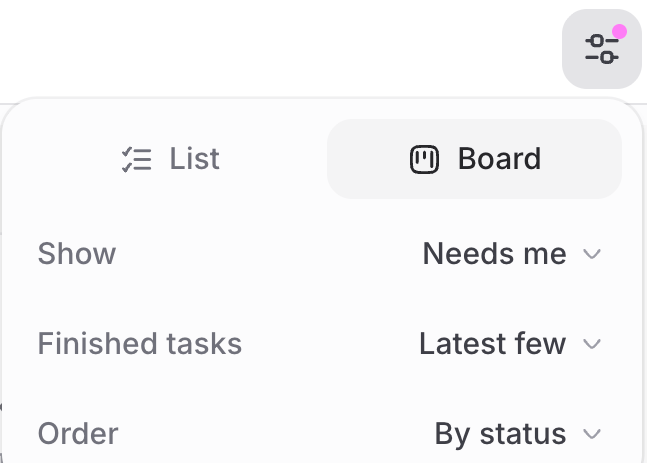
- You can also order tasks within each column, for example by status or by Last updated.
FAQ
What happens if I don't choose a space for my task?
What happens if I don't choose a space for my task?
Leave the space on Auto and Biscuit picks one based on what you asked for. For example, an invoice tool is likely to go to your accounting team’s space. You can choose a space yourself at any time while creating the task.
Can I create a task without Biscuit starting on it straight away?
Can I create a task without Biscuit starting on it straight away?
Yes. Turn off Auto start before you click Create. The task stays in Todo until you start it.
Do changes from a task go live automatically?
Do changes from a task go live automatically?
No. Biscuit moves the task to To review and waits for you. Click Approve and Publish to complete the task and put the change live, or Approve to complete it without publishing yet.
Can I group changes from several tasks into one release?
Can I group changes from several tasks into one release?
Yes. Click Approve (not Approve and Publish) on each task. The tasks move to Done and the changes wait in your app until you publish, so they all go live together.
How do I undo a change Biscuit made in a task?
How do I undo a change Biscuit made in a task?
Open the task and ask Biscuit to undo it in plain words, for example “Bring it back.” Biscuit makes the change and sends the task back to To review.
How do I know when a task needs me?
How do I know when a task needs me?
Use the Needs my attention filter on the task board. It shows every task that’s waiting for your approval or an answer.
Who can see my tasks?
Who can see my tasks?
You see every task you’ve created, plus the tasks in every space you have access to. You don’t see tasks in spaces you don’t have access to. See Spaces.
What files can I attach to a task?
What files can I attach to a task?
You can attach reference files such as PDFs, screenshots, and spreadsheets. Biscuit uses them as context, for example an invoice template to base your invoices on.
Up next
Publishing app
Publish your app to your team or the web.
Spaces
Organize apps and tasks by team.
Working with Data
The built-in database behind every app.