

Every space has a library. It holds everything related to the space and its apps: files you upload, things Biscuit generates, your apps’ data and logic, and the briefings Biscuit sends you. Everything lives in one place, so you can find it again quickly.
To open it, select Library in the side panel.
What’s in the library
The library has two sections:- Apps: one folder for each app in the space.
- Folders: everything else, such as General (briefings, designs and documents), Memory, and the folders and files you add.
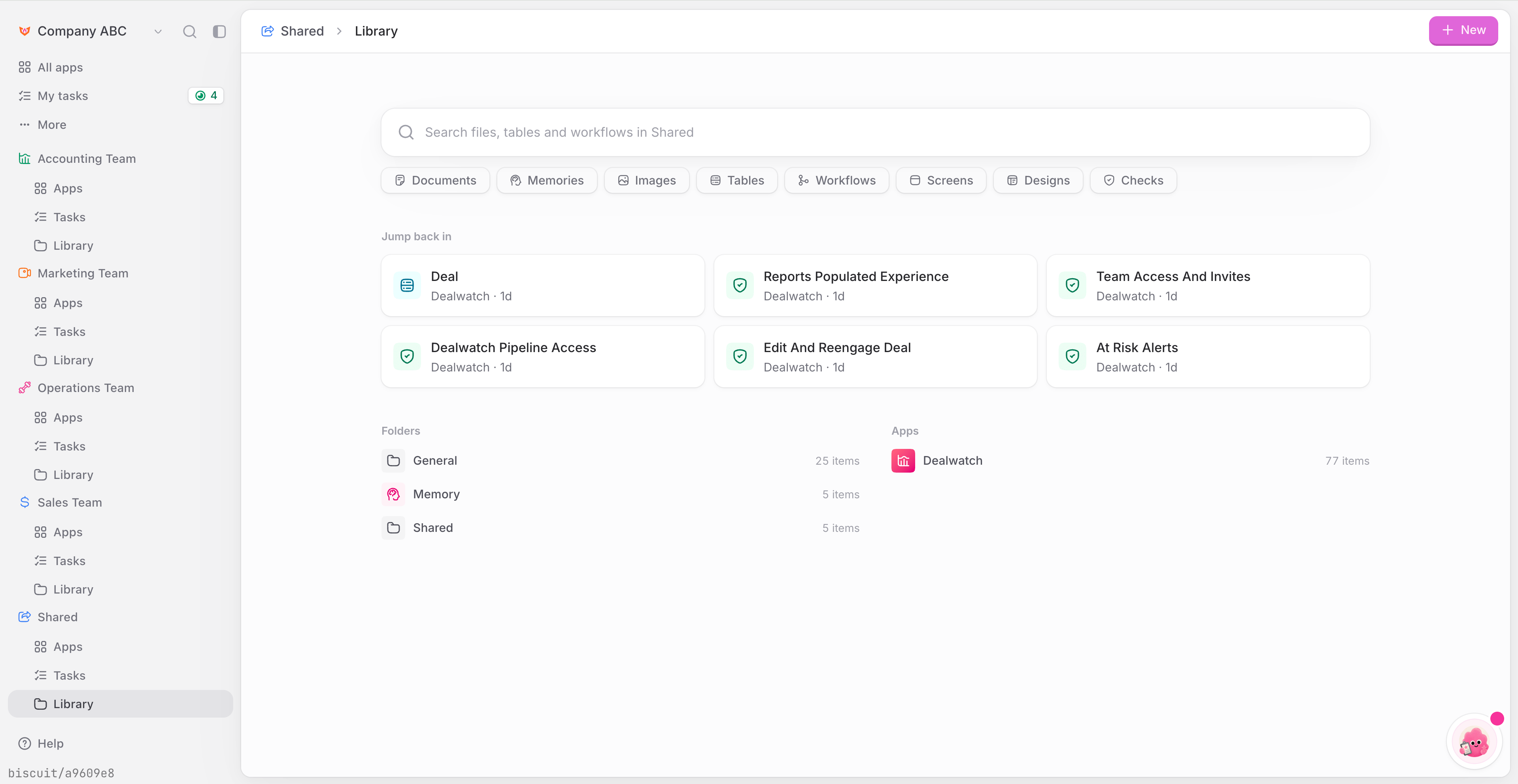
Inside an app
In the library, you’ll find sections like workflows, database, screens, documents you uploaded, and folders containing brand assets, briefings and images for your apps.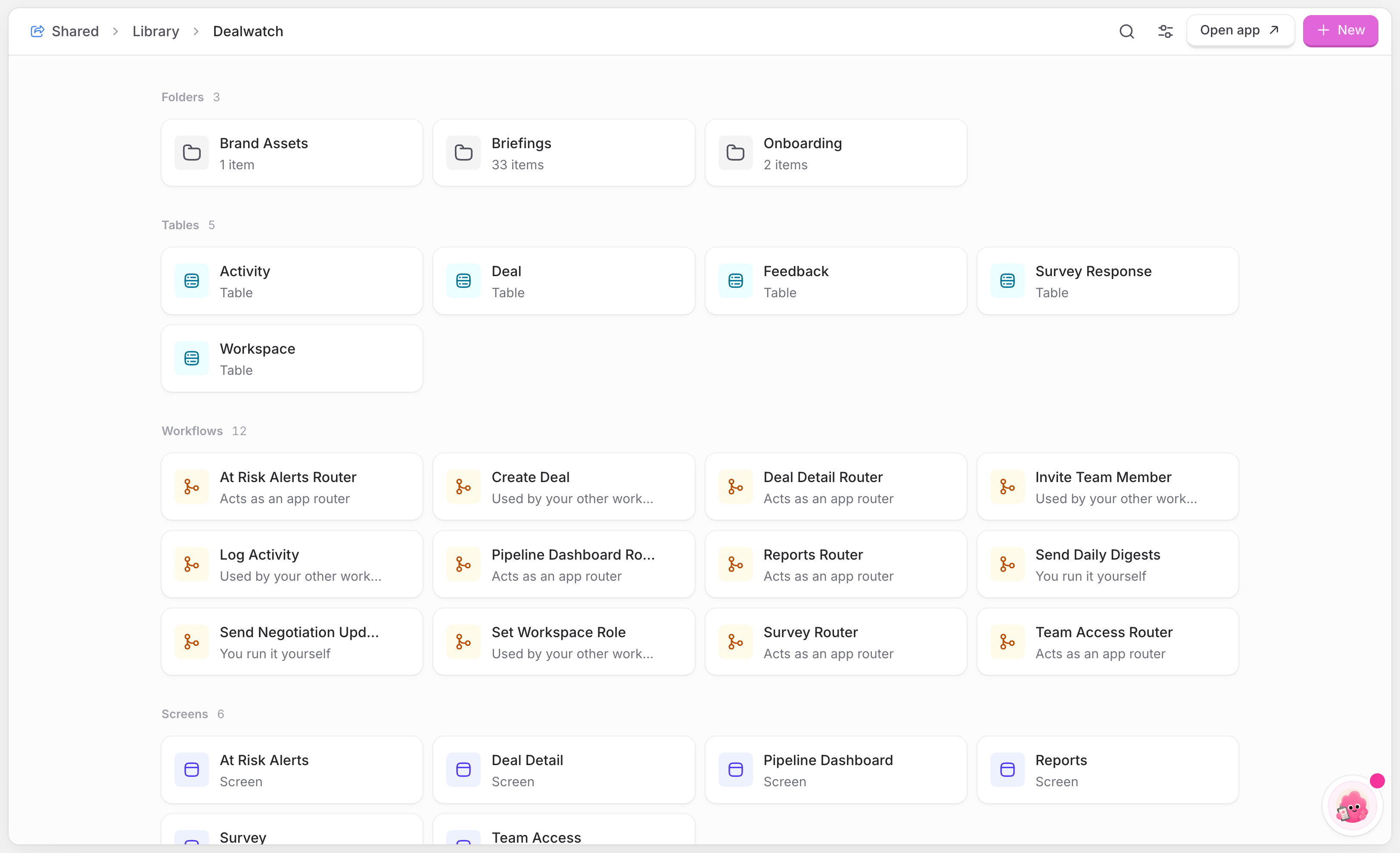
Tables
Your app’s database. Each table holds one kind of record. When someone uses your app, the change shows up here. To learn more about tables, see Working with Data.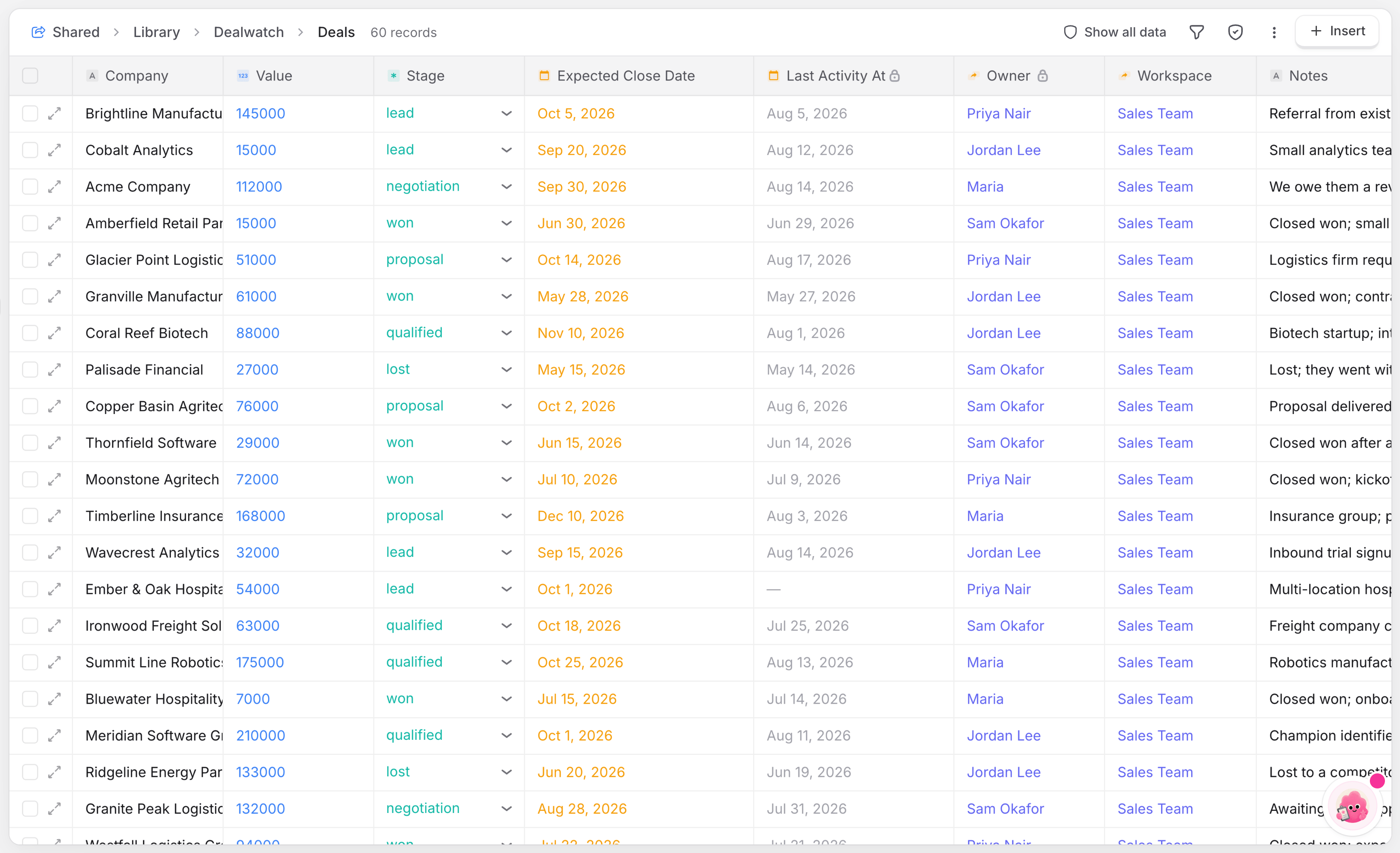
Workflows
The logic behind your app, drawn as a diagram. You can’t see your app’s code in Biscuit, but workflows show you what happens underneath, step by step. An app can have several workflows. To learn more, see Workflows.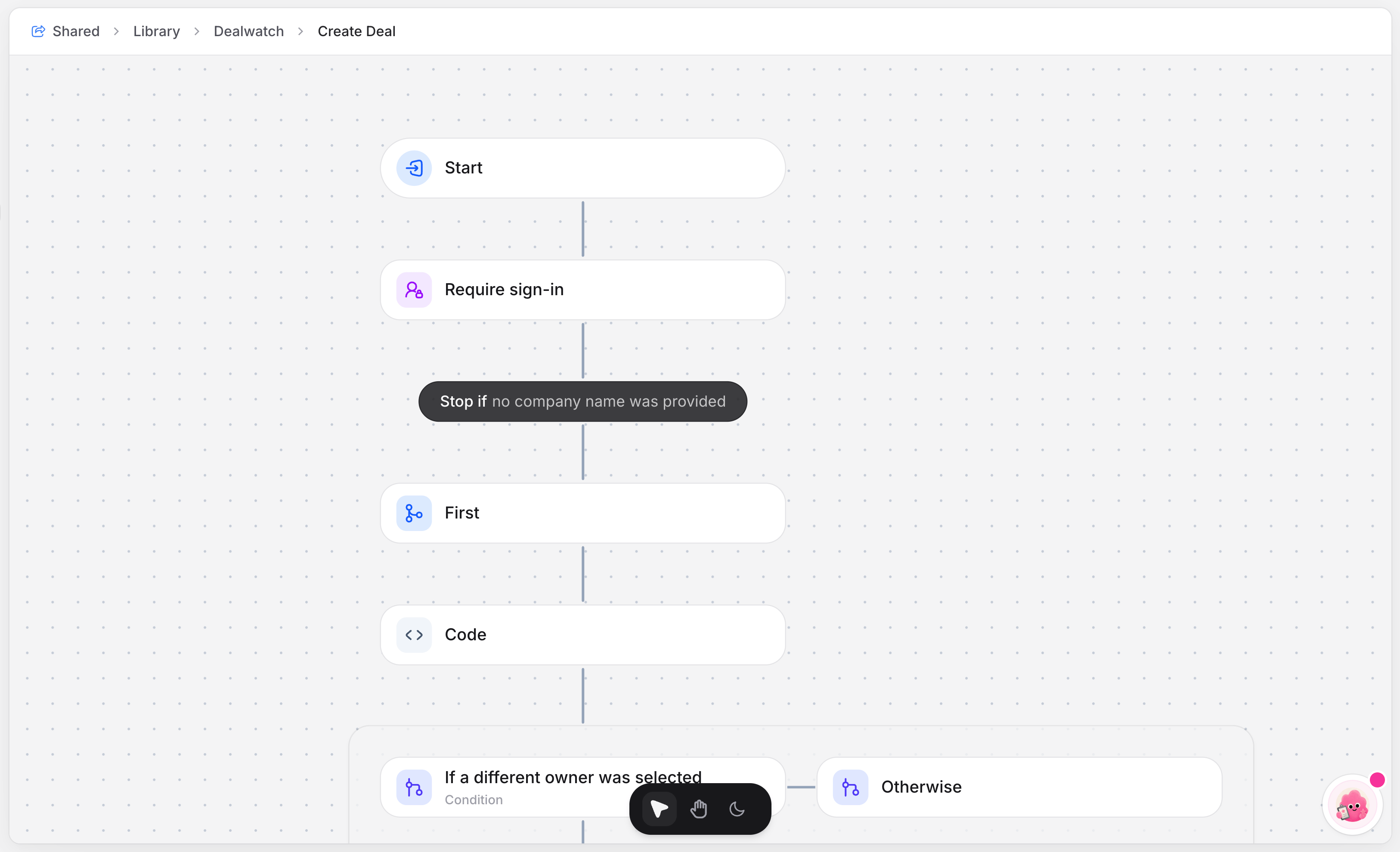
General
The General folder holds the material Biscuit creates for the space, sorted into folders such as Briefings, Designs and Documents.Briefings
Every night, Biscuit reviews your apps, even when you’re not looking. The briefings it writes land in General → Briefings. Open one to read it as a document: what Biscuit found and the next steps, if there are any. To learn more, see Night shift.Memory
The Memory folder holds what you want Biscuit’s AI to always know about your work. Memory belongs to the space: Biscuit refers to it whenever it builds or changes any app in that space, instead of relying on general assumptions. Each space has its own memory, so your HR team’s memory doesn’t affect your Sales team’s apps.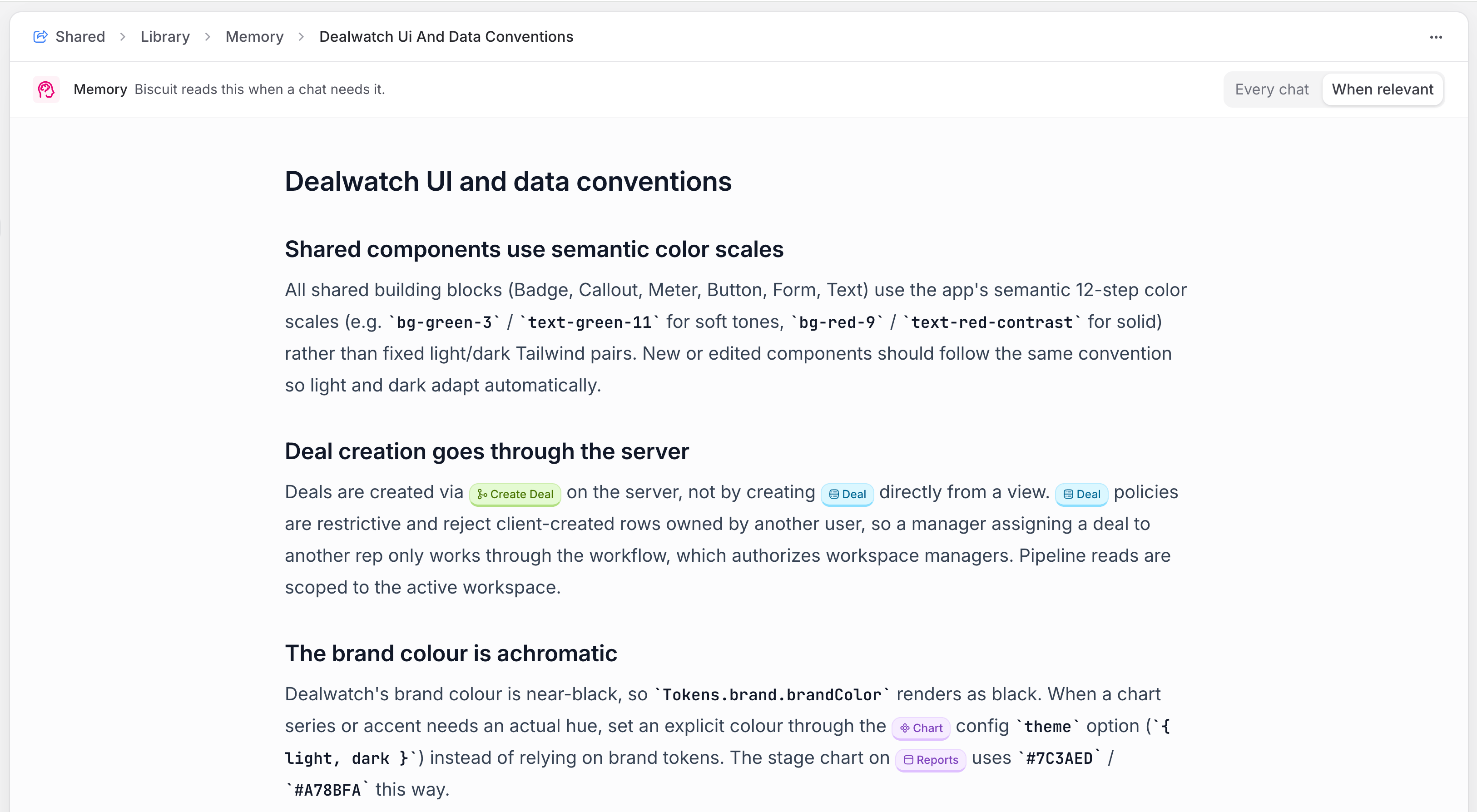
Adding files and folders
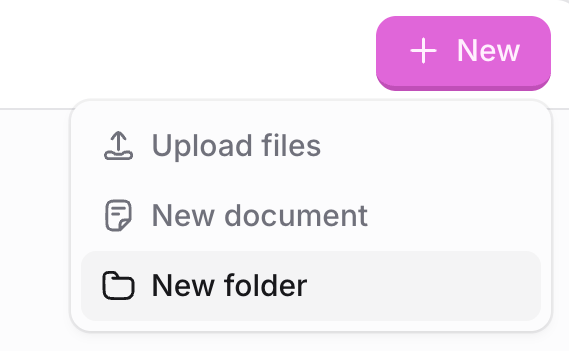
Keep your team’s documents next to the apps that use them.- In the Library, click New.
- Choose New folder to create a folder. You can also choose New document, or Upload to add a file.
- Open the folder and click New again to add files to it. To manage an item, open its menu to Rename, Share, Move or Delete it.
Only people with Can edit or Owner access to the space can add or change library items. People with Can use can open and read everything, but the options to upload, create, rename, share, move and delete don’t appear for them.
Who can see library files
What someone sees in the library depends on how they were given access:- Access to the space (Can use or higher): they see everything in the space’s library. For example, a folder in the HR team’s library is visible to every member of the HR team space.
- Access to a single app only: they see only that app’s information, such as its tables and workflows, and nothing else in the space’s library. To see who has access to an app, open its Share dialog. Members and sharing on the space lists only the space’s members. See Spaces and Sharing app.
Searching the library
Use the search bar at the top of the library to find any file, folder or item by name, for example contract or invoice.FAQ
Is there one library for the whole workspace?
Is there one library for the whole workspace?
No. Each space has its own library, with the apps and files that belong to that space.
Where does the data in Tables come from?
Where does the data in Tables come from?
From your app. Every time someone uses the app, for example submits a form, the change is saved to its tables and shows up in the library.
Can I see my app's code?
Can I see my app's code?
No. Biscuit shows your app’s logic as workflows instead, so you can follow every step without reading code.
What should I add to Memory?
What should I add to Memory?
Anything Biscuit should always keep in mind about your business: the names you use, how your processes work, and details about your domain. Biscuit uses it every time it works on your apps.
Can I choose when a memory can be used?
Can I choose when a memory can be used?
Yes. You have a choice to use a specific memory for “Every chat” or “When relevant.” This setting is available for each memory stored in the memory folder.
Who can see the files I upload?
Who can see the files I upload?
Everyone with access to the space, starting from Can use. People who were only given access to a single app see that app’s information, not the rest of the library. To limit who sees a file, put it in a space with the right access settings. See Spaces.
Where do I find Biscuit's briefings about my apps?
Where do I find Biscuit's briefings about my apps?
In the space’s library, under General → Briefings. Each briefing opens as a document. See Night shift for how briefings work.
Up next
Working with Data
The built-in database behind every app.
Night shift
Your app’s nightly review & morning brief.