

Biscuit comes with built-in email infrastructure. You don’t have to connect a third-party email service, set up SMTP, or configure DNS. Each app has its own email address (
<your-app-slug>@apps.bsct.so), and outgoing emails come from there.
Setting up your first email automation
1
Decide what triggers the email
Common triggers: a user signs up, a record reaches a threshold (5+ items in a list, 100+ visits, etc.), a scheduled time, or an external API call.
2
Open chat and describe the automation
Be specific about both the trigger and the message. Example: “I want to set up email automation where the app sends a notification to the user if they have more than 5 movies in their watch list. The message should say: ‘Looks like you have too many movies to watch.’” Biscuit builds a workflow that watches for the trigger and sends the email.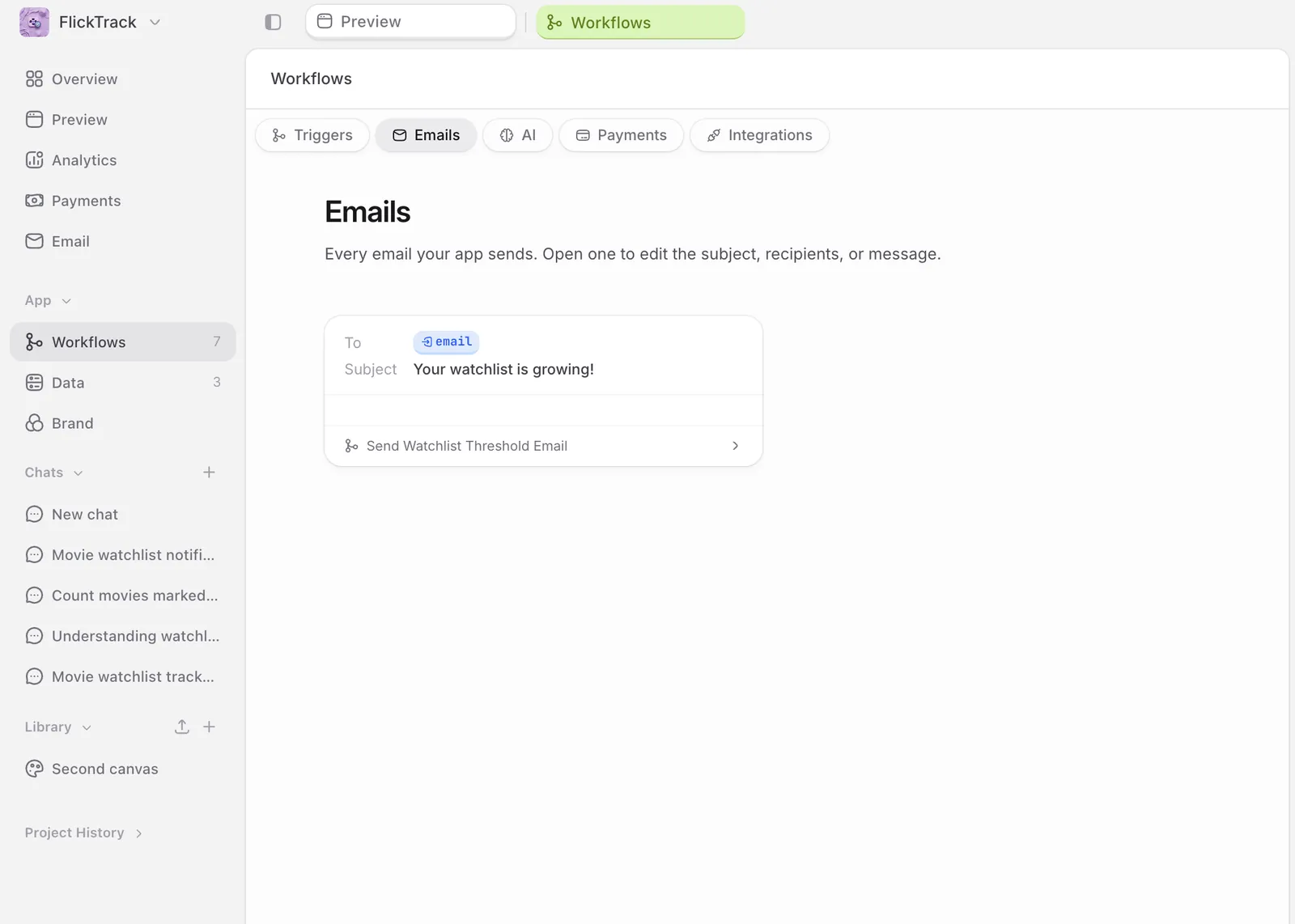
3
Confirm what was built
Biscuit replies with a summary of the new workflow. Open Workflows in the side nav and find the workflow it created. Each step is visualized: trigger, condition, recipient lookup, email body, send.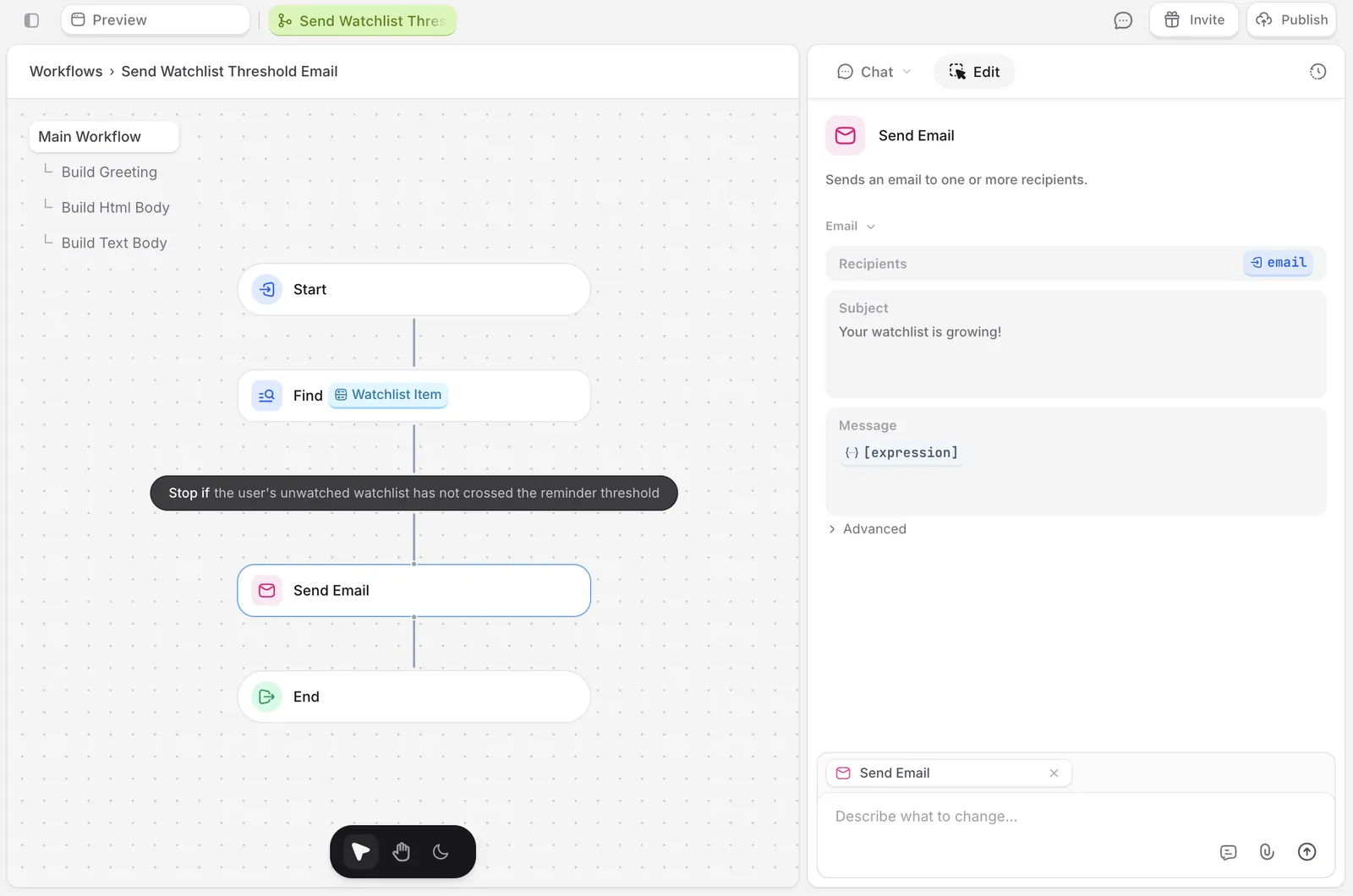
4
Test the email
Trigger the condition manually (in the example above, add a 6th movie to your own watch list) and check your inbox. The email should arrive in seconds.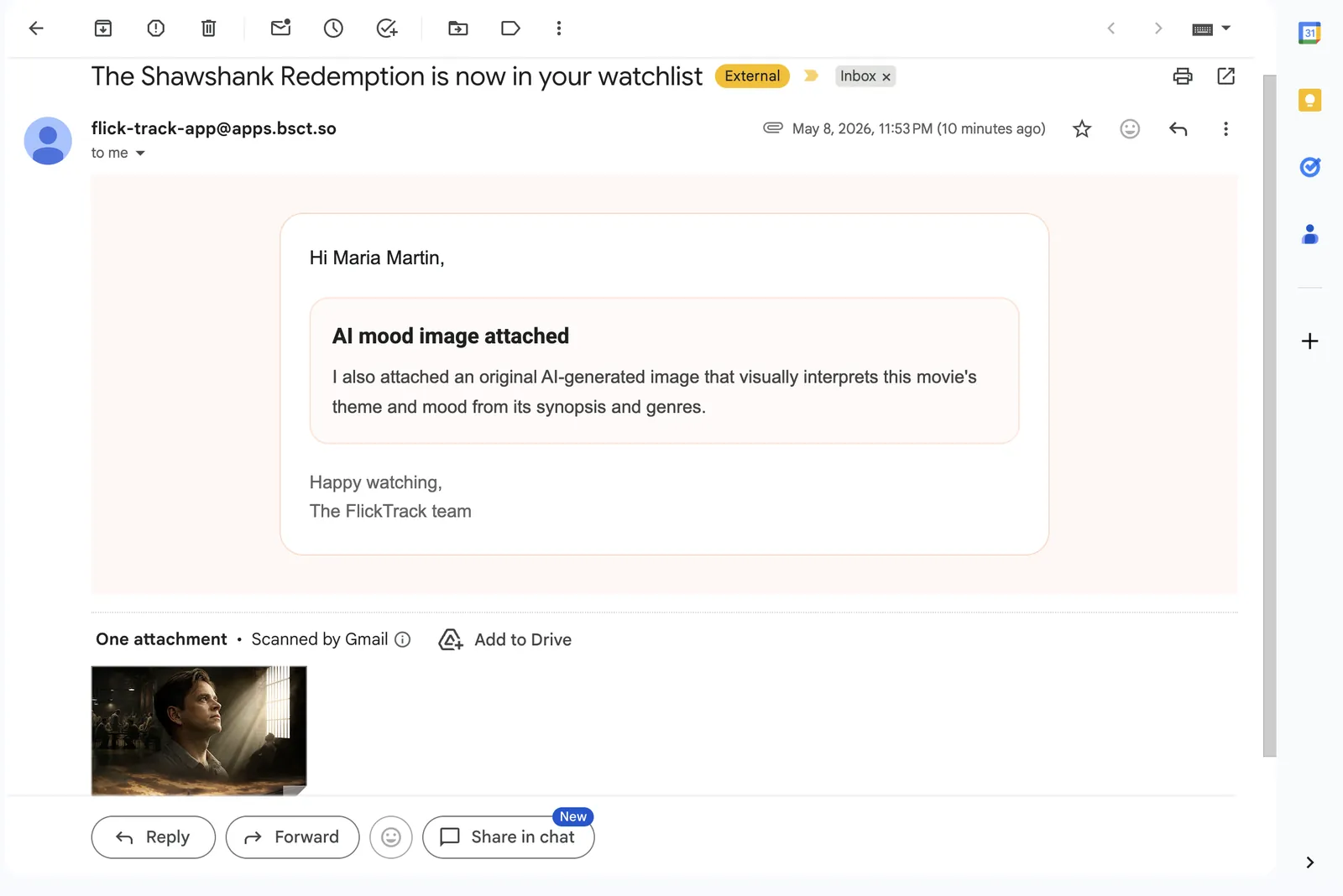
5
Iterate
If the message, timing, or trigger isn’t right, open the workflow, click the step you want to change, and prompt the change in chat (“change the threshold from 5 to 10”, “send 24 hours after the trigger instead of immediately”, “make the subject line shorter”).
Reviewing what your app has sent
The same in-app inbox view has a Sent tab listing every email your app has sent, with recipient, subject, time, and body. Use it to confirm a send went out, audit what users actually received, or open a thread to see the full content.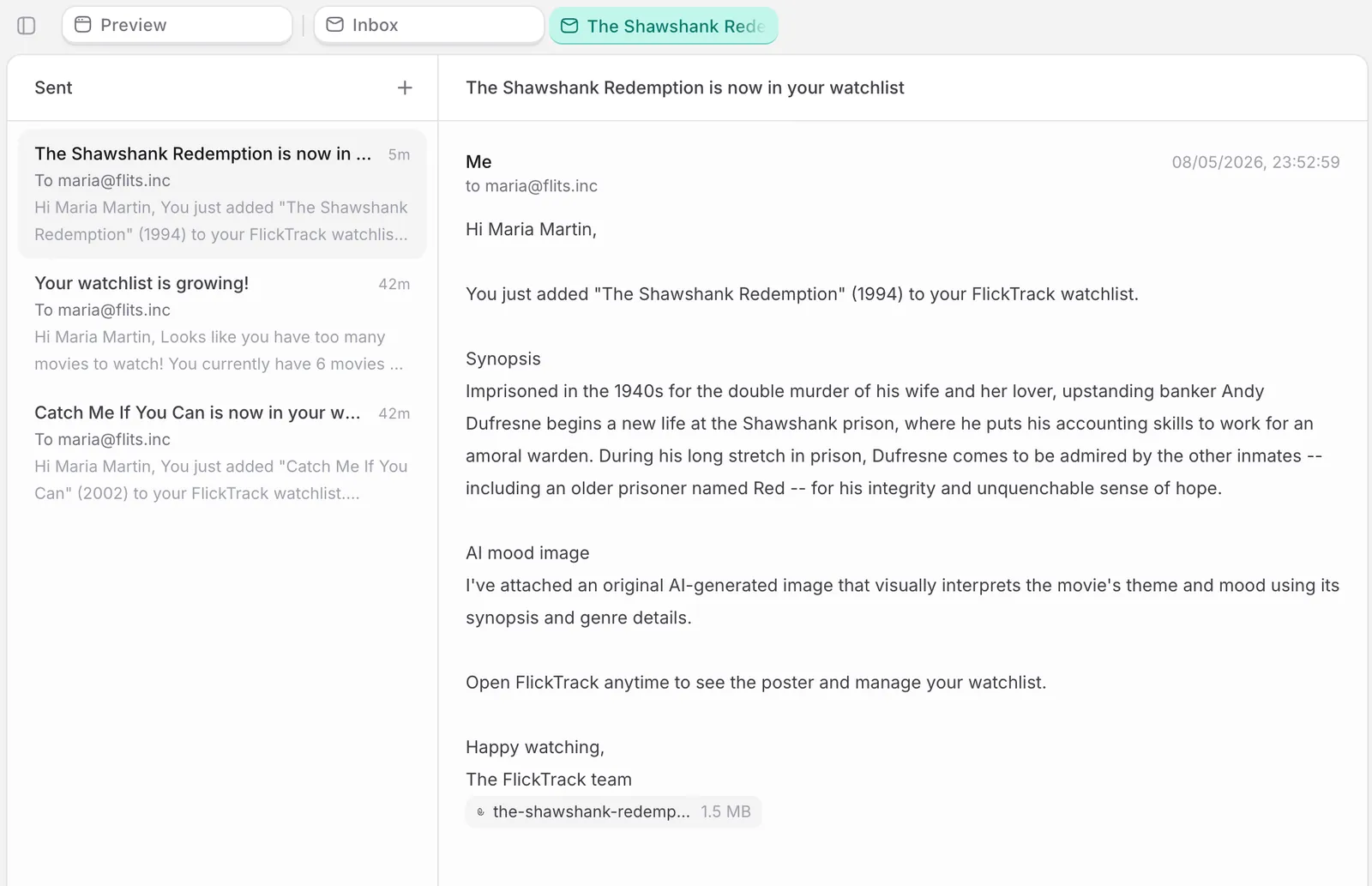
Routing replies
By default, replies to your app’s emails route back to the app’s inbox at<your-app-slug>@apps.bsct.so, where workflows can pick them up and trigger automations. To send replies somewhere else (e.g. a shared team inbox), set a Reply-To on the email step. Ask in chat: “Set the reply-to on this email to support@yourcompany.com.”
Common email automations
Emails are an action inside workflows, so anything that can trigger a workflow can send an email. The common patterns:- Data events. A record was created, updated, or deleted: a new sign-up, a status change, a payment row appearing, an inbound email landing in your inbox. “When a User is created, send them a welcome email.” “When a Payment is created, send the buyer a receipt.”
- Schedules. A recurring timer for digests, reminders, or summaries. “Every Monday at 9am, send each user a summary of their activity from the past week.”
- User actions. Someone clicked a button, submitted a form, or performed any other UI action. “When a user clicks ‘Request demo’ on the homepage, email the team the lead.”
- External calls. A webhook from a connected service (a calendar, a form provider, a CRM) or an HTTP endpoint your app exposes. “When Calendly reports a new booking, email me the prospect’s notes.”
FAQ
Why isn't the email arriving?
Why isn't the email arriving?
Check the workflow ran (Workflows → click the workflow → look at the run history). If it ran but didn’t send, the issue is most likely the recipient lookup. If it didn’t run, the trigger condition isn’t being met.
Why does the email land in spam?
Why does the email land in spam?
Outgoing emails come from your app’s address (
<your-app-slug>@apps.bsct.so). Deliverability is generally good, but each receiving inbox applies its own filters. If users report spam folder placement, ask them to mark a Biscuit email as ‘not spam’ once. Most providers learn fast.Can I use my own domain (like hello@yourcompany.com) as the sender?
Can I use my own domain (like hello@yourcompany.com) as the sender?
Not yet. Outgoing emails always come from
<your-app-slug>@apps.bsct.so. The team is tracking demand for custom sender domains.Up next
Receiving emails
Your app has its own email address.
Workflows
The logic of your app, drawn so you can see and change it.
Build your first project
From prompt to a live app on a custom domain.