

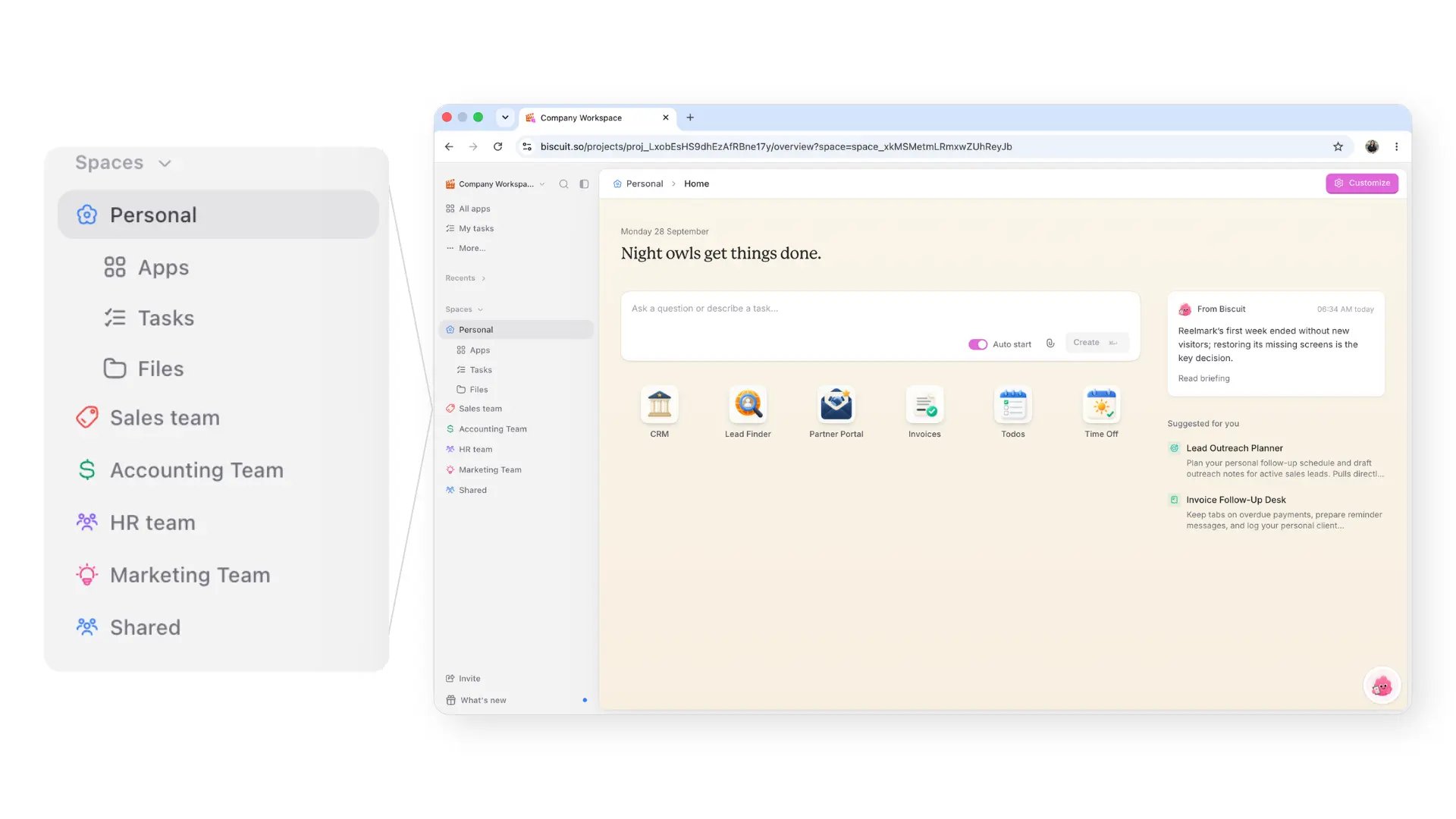
Creating a space
- In the side panel, click + next to Spaces.
- Enter a name for the space, for example Marketing team.
- Choose who can access it (see below).
- Optionally, invite people to the space now or add them later.
- Click Create space.
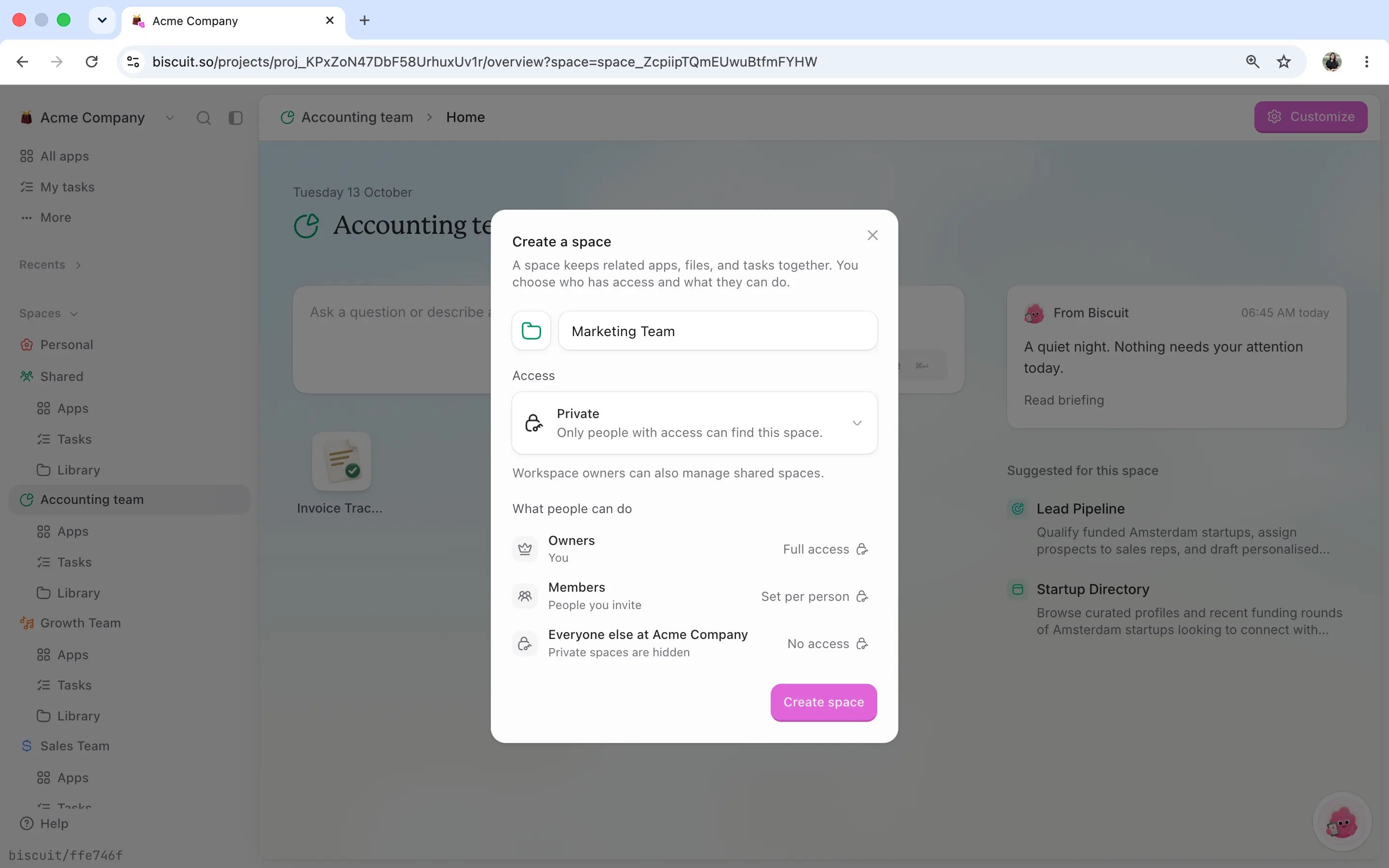
Choosing who can access a space
Every space has one of four access settings:- Everyone: everyone in the workspace is a member automatically.
- Open: anyone in the workspace can find and join it.
- Closed: anyone can find it, but an invitation is needed to join.
- Private: only people with access can find it.
Adding members to a space
To give someone access to a space, they need to be a member of your workspace first. See Members to invite them.- Open the space and click Members and sharing.
- Choose a person from your workspace members.
- Pick what they can do in the space.
- Click Add.
Once added, the space appears in their side panel.
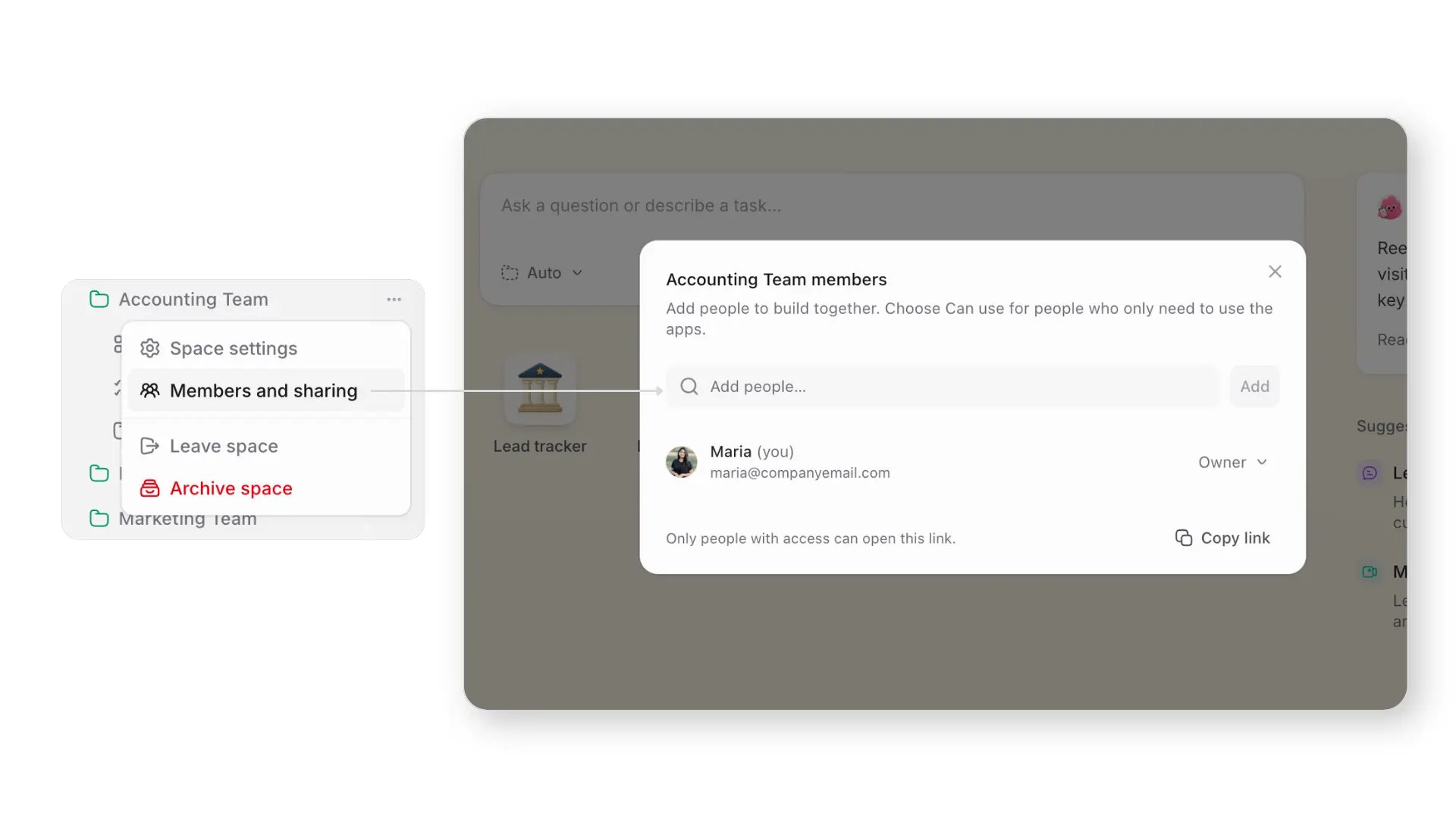
Space settings
To change a space, click the icon next to its name and select Space settings. From there you can:- Rename the space.
- Change who can access it.
Up next
Your first app
Build your first app in your new space.
Sharing apps
Give teammates and teams access to an app.
Moving apps
Move an app to a different team’s space.