

Invite new members
To invite people, click “Invite members” from workspace menu in the top-left corner.Invite by email
Enter the person’s email address and click Invite.- People who already use Biscuit join your workspace right away.
- Everyone else gets an email with a link and joins when they sign up.
Invite link
Click Copy link and share it with your team however you like, for example in Slack or email. Anyone with the link can join your workspace. Don’t need the invite link anymore? Click Revoke to prevent new members from joining.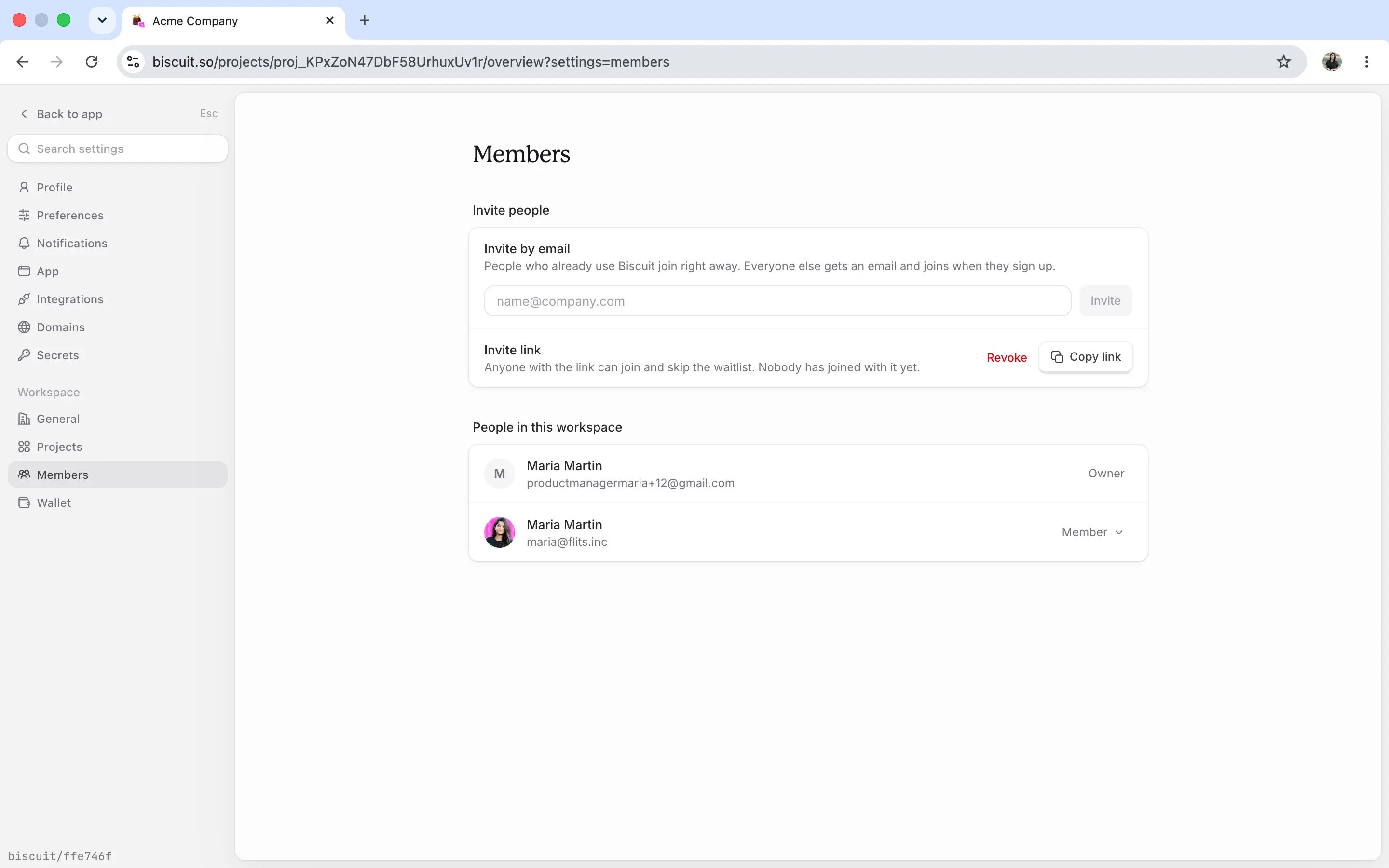
What the invited person sees
- They receive an email saying they’ve been invited to your workspace on Biscuit.
- They click Join workspace.
- They sign in the same way you did when you first signed up - with Google or with a sign-in link sent to their email.
Pending invitations
Until someone accepts, their invitation shows as pending in your members list. Once they join, they appear alongside the other workspace members.Manage member roles
Every person in your workspace has one of two roles:- Member: the default for everyone who joins. Members can build and use apps in the spaces they have access to. What a member can see depends on each space’s access setting. See Spaces for more.
- Owner: can do everything a member can, plus invite new people, change roles, and remove members.
Removing a member
Go to Settings → Members, find the person under People in this workspace, and click Remove. They lose access to the workspace and all its spaces.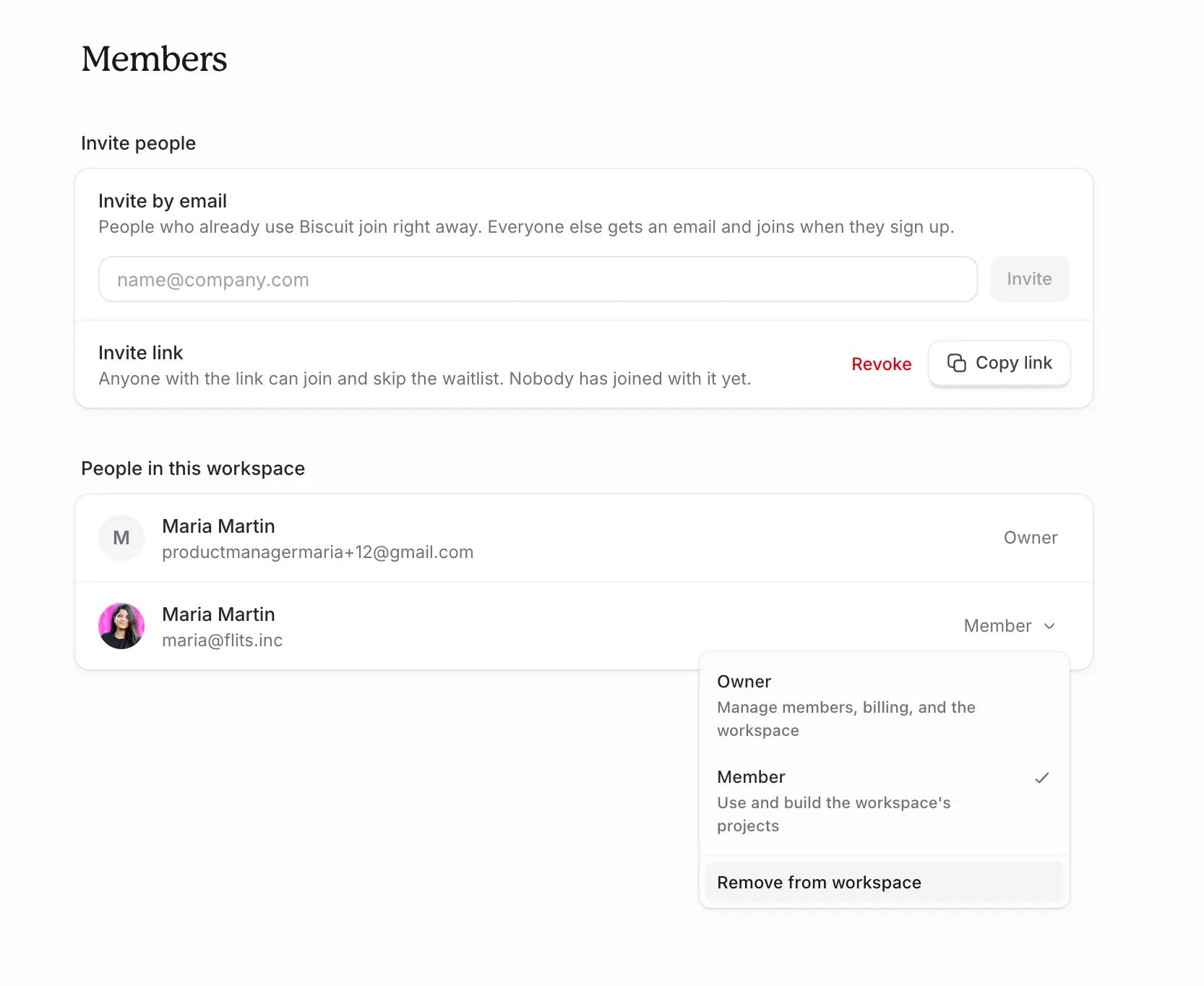
Up next
Spaces
Give each team its own space for its apps.
Sharing an app
Give teammates and teams access to an app.
Access control
See how workspace, space, and app access work together.