

Every app belongs to a space, and the members of that space can access it. You can also share an app with specific teammates, with other teams’ spaces, or with your whole company.
People you share an app with see its latest published version. If you haven’t published your app yet, or you’ve made changes since, publish first. See Publishing your app.
Sharing with a teammate
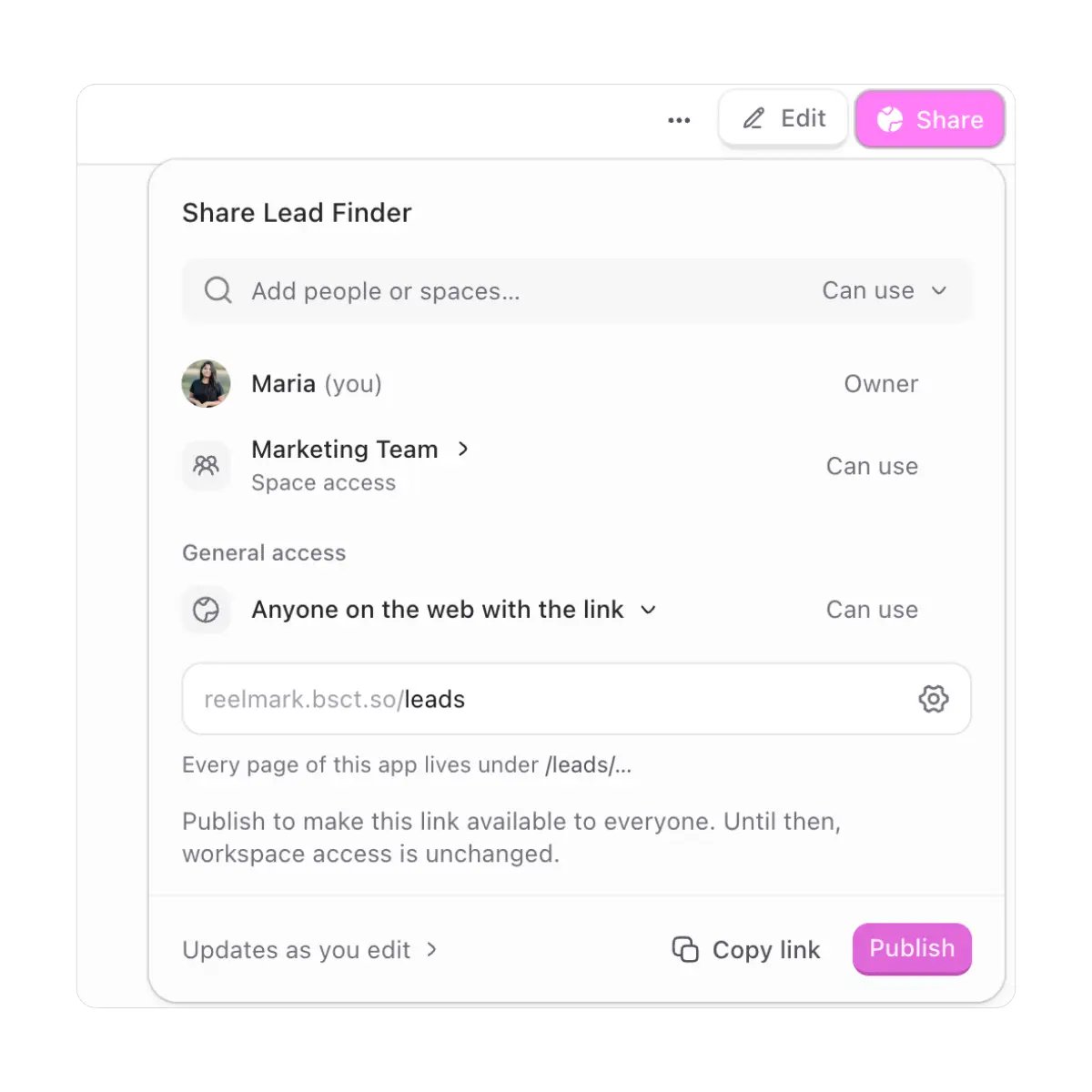
You can only share with people who are already in your workspace. If someone isn’t there yet, invite them first. See Members. To share with your team mates:- Click Share and search for the person.
- Select them from the list.
- Choose what they can do:
- Can use: open and use the app.
- Can edit: use the app, make changes to it, and publish new versions.
Removing someone’s access
Find the person in the Share panel and click Remove access. The next time they open the app, they won’t be able to see it.Sharing with another team
You can share an app with a whole team by adding their space. Everyone in that space gets access.- Open the app, click Share, and search for the space, for example Sales team.
- Select it and choose Can use or Can edit.
Choosing general access
General access sets who can open the app beyond the people and spaces you’ve added:- Only people invited: only the people and spaces listed in the Share panel.
- Everyone at your company: everyone in your workspace.
- Anyone on the web with the link: makes the app public. See Publishing your app.
Up next
Access Control
Decide who can see, use, and edit each app.
Members
Invite people and manage roles.