

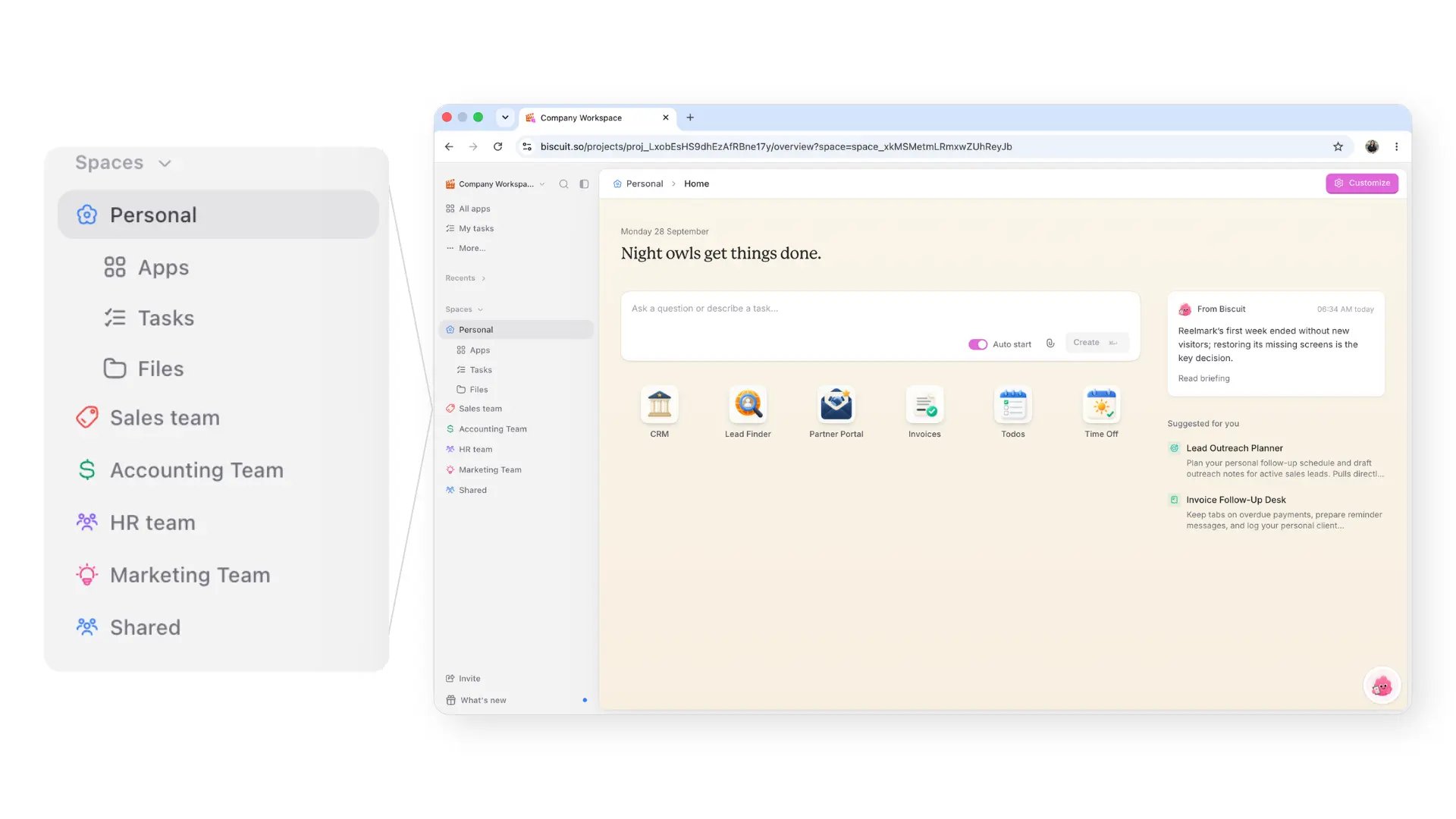
A workspace is your account in Biscuit. You can have it either for Work or for Personal life. Everyone on your team joins the same workspace, and everything you build - apps, tools and automations - lives inside it. Inside a workspace, each team can have its own space, for example, Sales, Marketing or HR, so apps stay organized and access stays controlled.
Creating your workspace
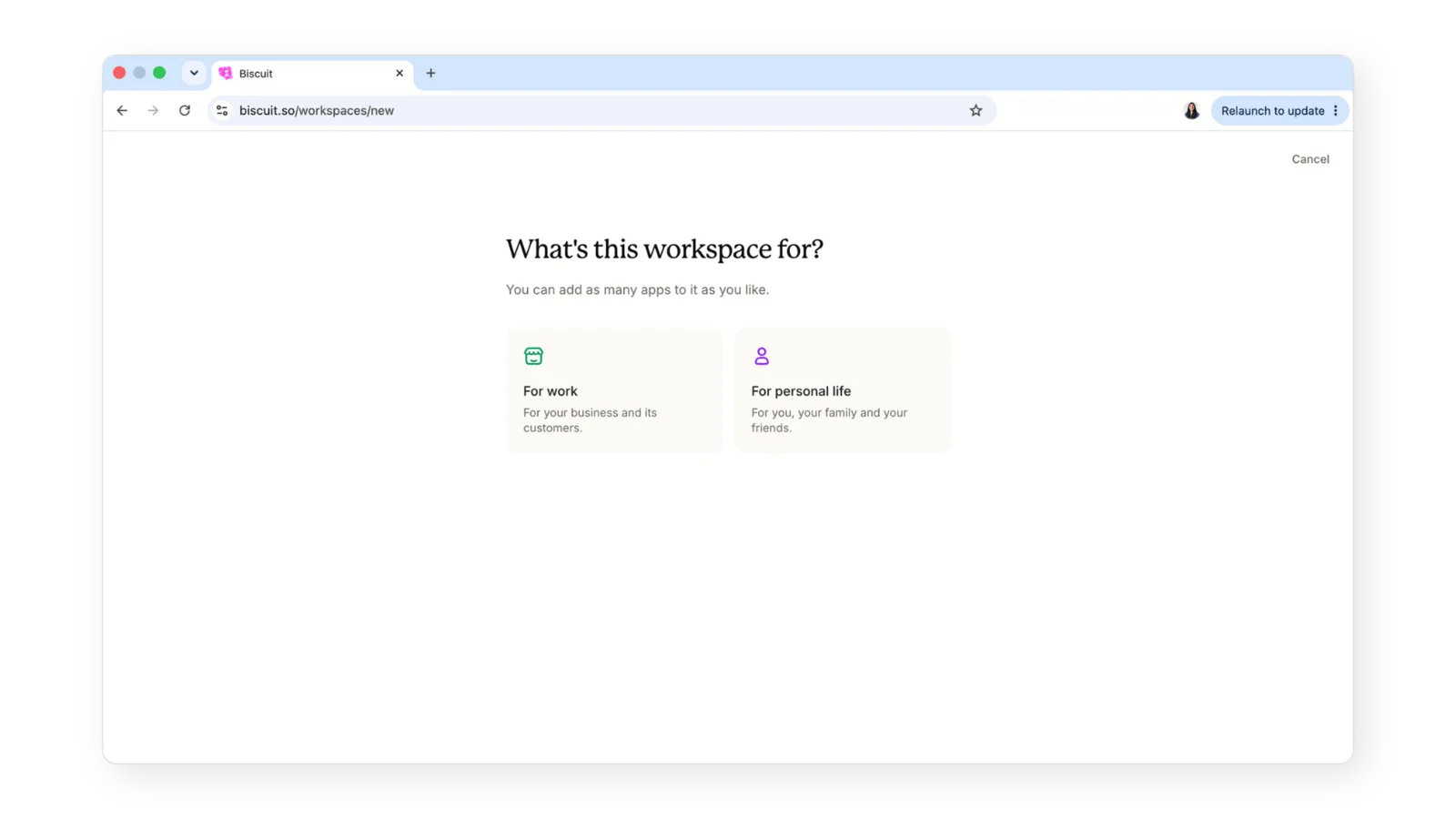
You create your workspace during onboarding, the first time you sign up.- Choose how you’ll use Biscuit: When Biscuit asks how you plan to use it, select For work. This sets Biscuit up for a team, so you can invite colleagues and build apps together.
- Name your workspace: Enter your business name. This becomes the name of your workspace and appears at the top of the side panel.
- Add company context: Add your company website or a short description of your business. Biscuit uses this context when building apps, so what it creates is more relevant to your business from the first app onward.
- Invite your team (optional): You can invite team members right away, or skip this step and do it later from workspace settings.
Workspace settings
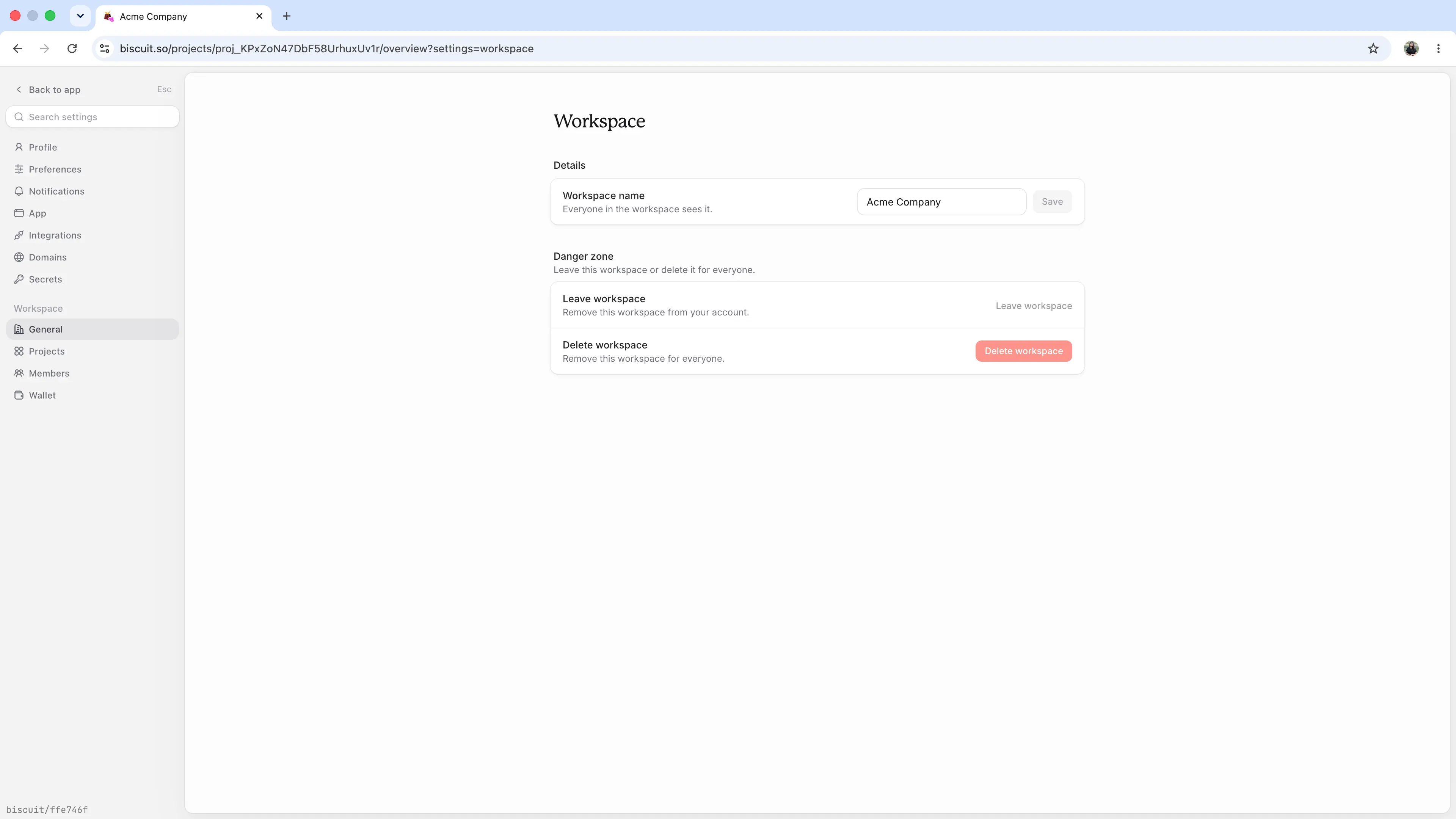
Your workspace name is shown at the top of the side panel. Click it to open the workspace menu, then select Settings. Under Workspace, you’ll find:- General: your workspace name and details.
- Members: invite people and manage roles. See Members.
- Wallet: your credits and billing.
Up next
Members
Invite your team and manage their roles.
Spaces
Give each team its own space for its apps.
Your first app
Turn an idea into a working app.