

Connecting a tool
You can connect a tool in two ways: from chat while you build, or from Settings.From chat
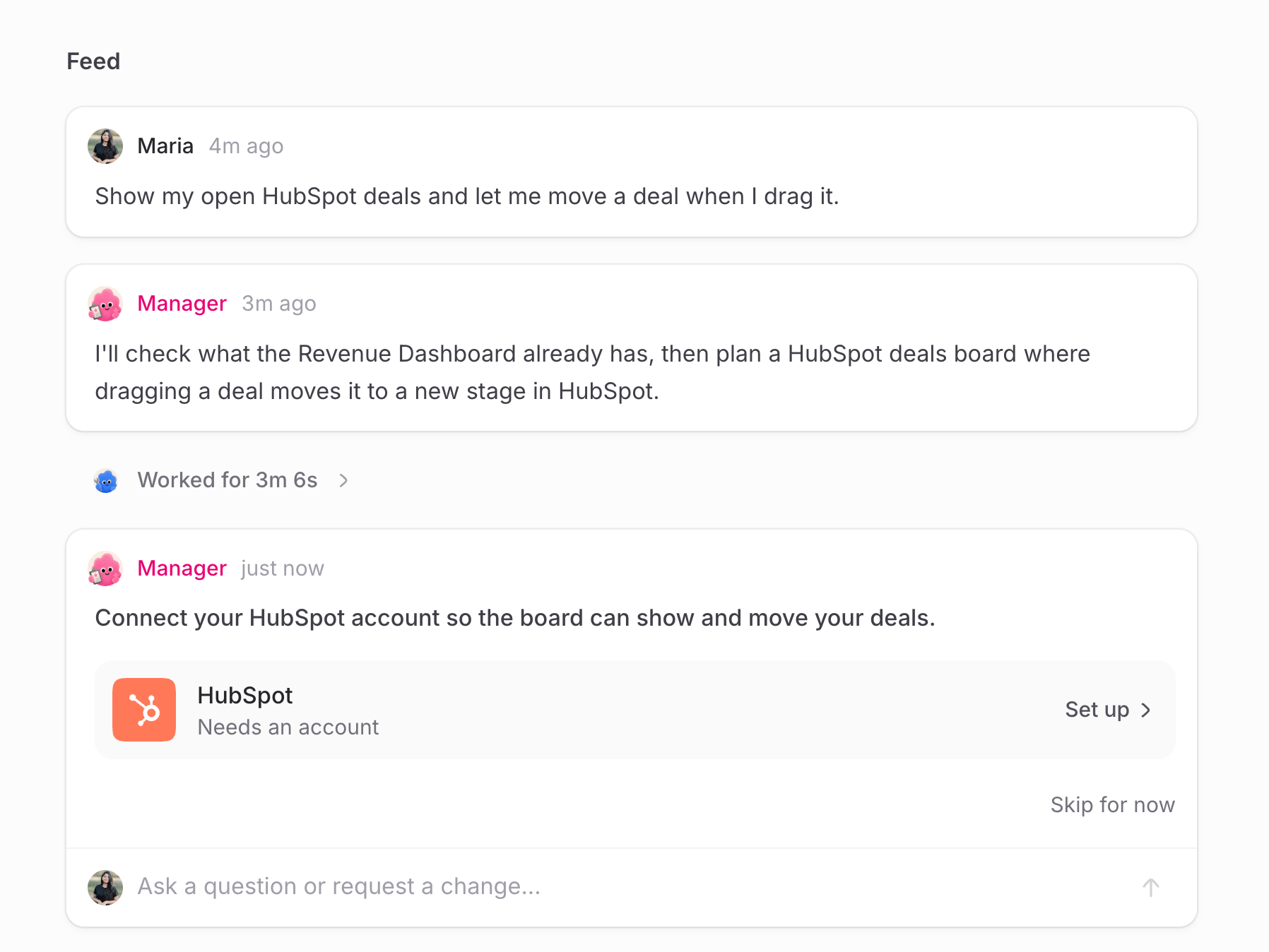
- Describe what you need, for example: “Show my open HubSpot deals and let me move a deal when I drag it.”
- Biscuit sees that your app needs HubSpot and asks you to connect it, right in the chat.
- Sign in to the service and choose the access the app gets, for example Read: Companies, Deals and Change: Deals.
- Biscuit builds your app, and the app can use the service straight away.
From Settings
- Open Settings. You can also press Cmd + , (Mac) or Ctrl + , (Windows).
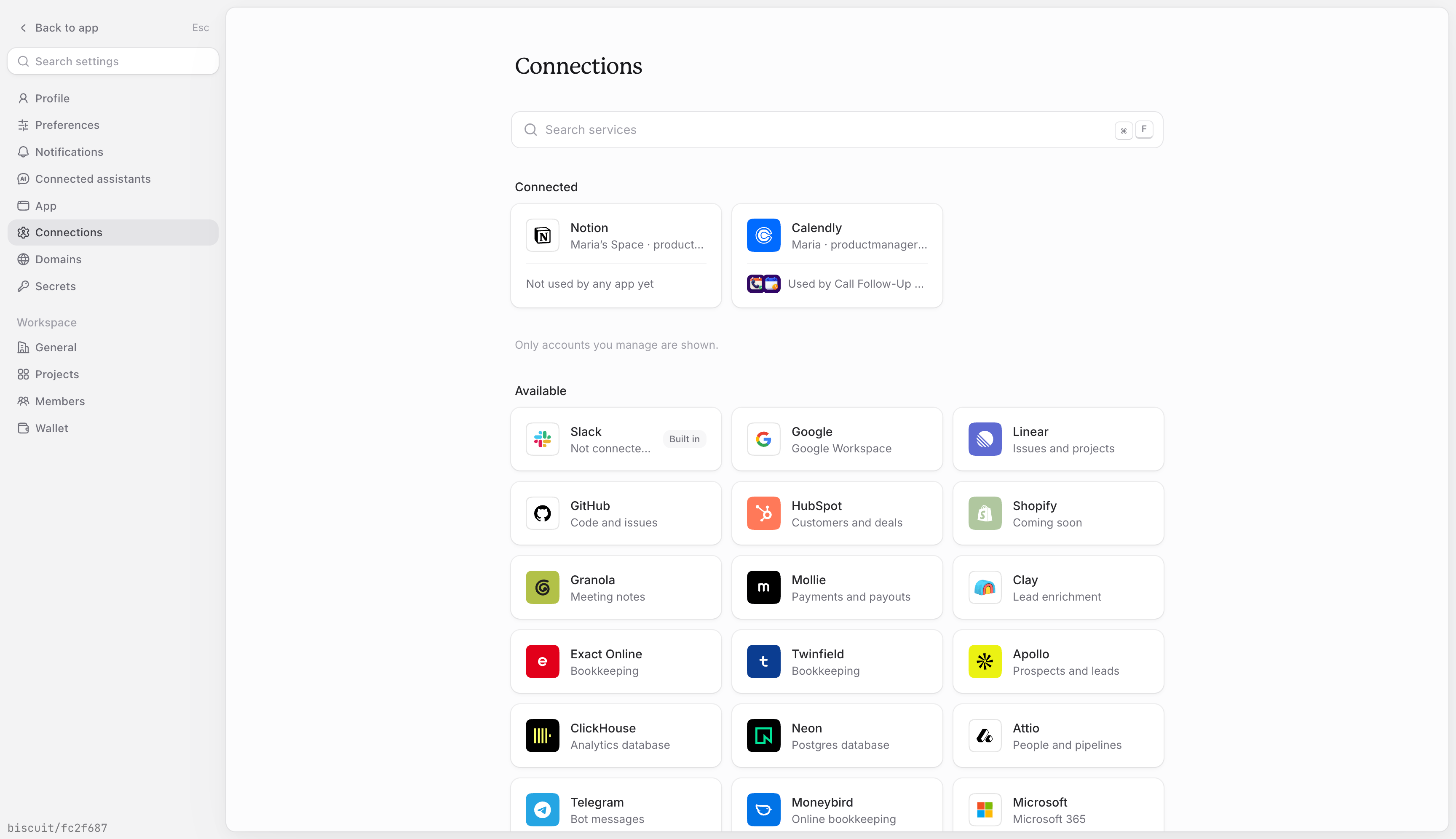
- Select Connections.
- Under Available, pick the tool.
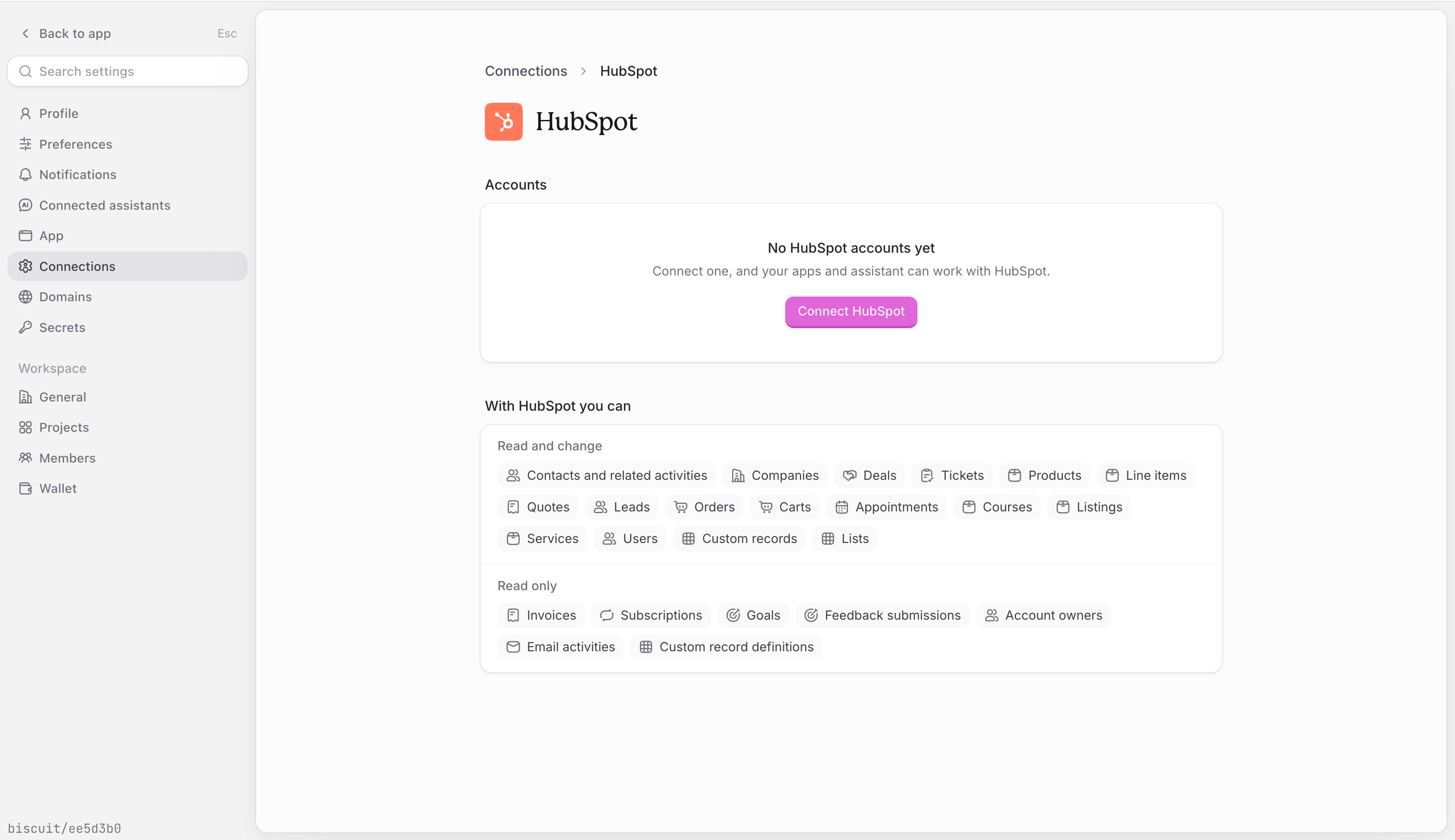
- Choose who can use the account and what it can access.
- Sign in to the tool. The tool is now ready for any app that needs it.
Managing your integrations
You can manage integrations in two places: Settings, for the accounts you’ve connected, and an app’s Share settings, for how that app uses them.In Settings
Open Settings → Connections. Under Connected, you’ll see each account you’ve connected, which apps use it (for example Used by Sales Dashboard and 2 more), and what it can access, such as Read or Change. For each account, choose Who can use this account:- Only you: the account is kept in your Personal space. Only you can manage it or pick it for other apps and chats.
- A shared space: everyone in that space can pick it for their apps and chats. Anyone who can edit the space can manage it.
Reconnecting and Disconnecting your integrations
- If an account stops working, its card shows Needs reconnecting or Needs more access. Click Reconnect or Allow access and sign in again.
- To disconnect an account, open its menu on the Connections page.
In an app’s Share settings
Each service in an app uses either one shared account or each person’s own account. To choose:- Open the app and click Share.
- Open Connected services.
- For each service, choose one of these:
- One shared account: everyone using the app goes through the same account, for example a team calendar or the company CRM. Someone who can edit the app connects it once. Until then, people who can only use the app are asked to wait for an editor.
- Each person’s own account: everyone connects their own account, for example their own email or notes. Each person is asked to connect it the first time they use the app. After you switch between the two, the account needs to be connected again.
Using a service in chat, without an app
You don’t need to build an app to look something up. Ask a question in chat, for example “Which HubSpot deals are closing this month?” If the account isn’t connected yet, Biscuit asks you to connect it, then answers. Looking things up only reads data. Biscuit changes data in a connected service, or sends messages through it, only when you’ve clearly asked it to. If it isn’t sure, it asks first.Available integrations
- Apollo
- Notion
- HubSpot
- Attio
- Calendly
- Granola
- Exact Online
- Clay
- ClickHouse
- GitHub
- Linear
- Mollie
- Neon
FAQ
Do I need an API key or a developer to connect a tool?
Do I need an API key or a developer to connect a tool?
No, for most tools. You sign in to the tool in a pop-up window.
What can an app do with my account?
What can an app do with my account?
Only what you approve when you connect. Biscuit shows the exact access first, for example Read: Deals and Change: Deals, and why the app needs it.
Who can manage a connected account?
Who can manage a connected account?
If you choose Only you, only you can. If you share it with a space, anyone who can edit that space can manage it.
Can teammates use an app that uses my account?
Can teammates use an app that uses my account?
Yes. If the app uses one shared account, everyone using the app goes through it, even if the account is set to Only you. That setting controls who can manage the account and use it in new apps.
An account says Needs reconnecting. What do I do?
An account says Needs reconnecting. What do I do?
Open Settings → Connections, click Reconnect or Allow access on the account’s card, and sign in again.
Can Biscuit change data in my services without asking?
Can Biscuit change data in my services without asking?
In chat, no. Biscuit only makes changes you clearly ask for, and asks when it isn’t sure. In a published app, actions run when someone uses them, like any other action in the app.
What's the difference between Integrations and Connected assistants?
What's the difference between Integrations and Connected assistants?
Integrations let Biscuit use your other tools. Connected assistants work the other way: they let an assistant like Claude or ChatGPT use Biscuit.
Up next
Connecting external APIs
Connect a service that isn’t on the list.
AI security
How Biscuit keeps your data and credentials safe.