

What’s tracked automatically
The framework wires three events into every app:- Page views, on every route change
- Time on page, when someone leaves a page or closes the tab
- Core Web Vitals (LCP, FCP, INP, CLS, TTFB), on page load
What you’ll see on the dashboard
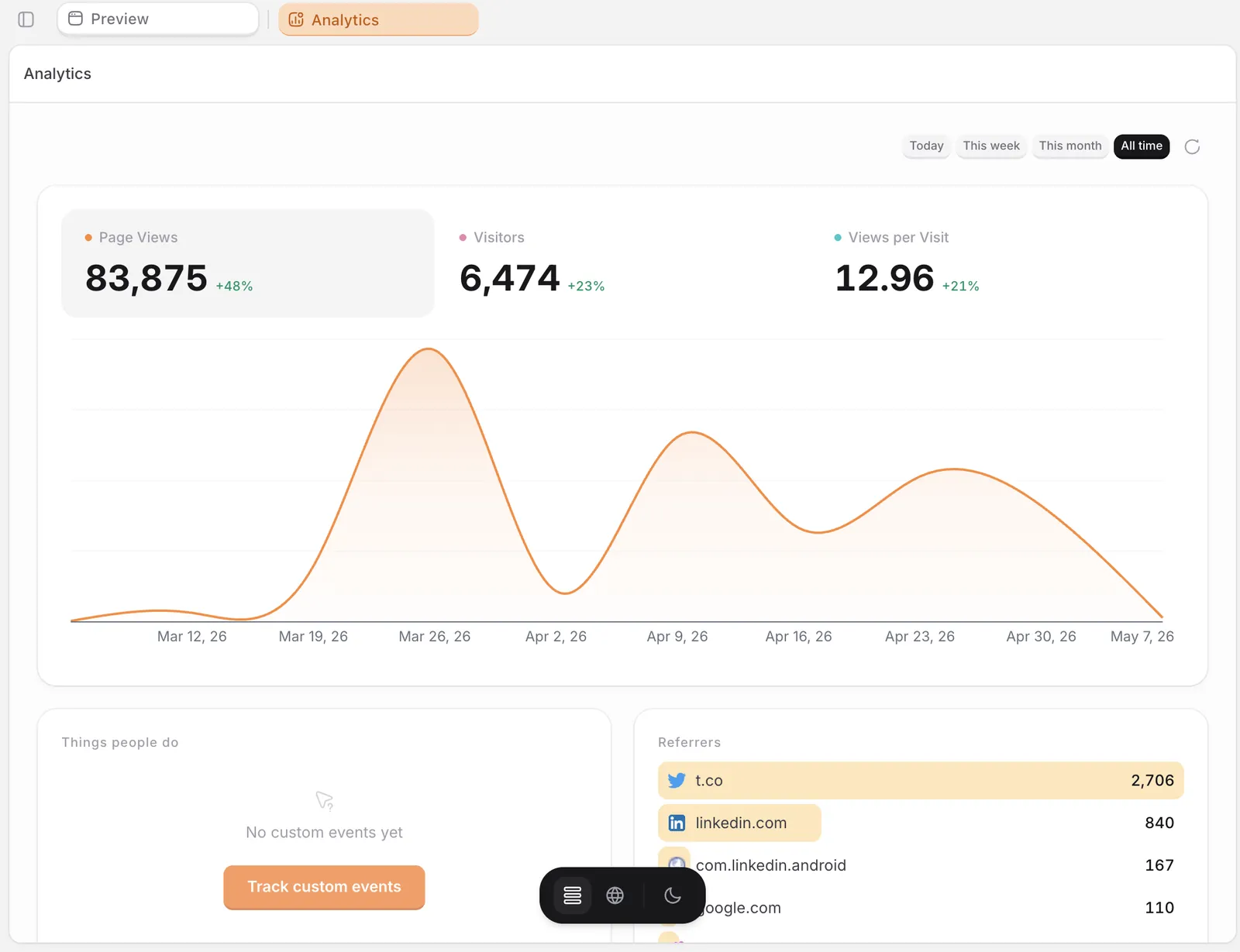
Open Analytics from the project side nav. The default view shows:- KPIs at the top: page views, visitors, and views per visit, each with the change vs. the previous period
- A line chart of page views over the selected period (Today, This week, This month, or All time)
- Top pages with average time on page and visit count
- Referrers showing where visitors came from (Twitter, LinkedIn, Google, direct, and so on)
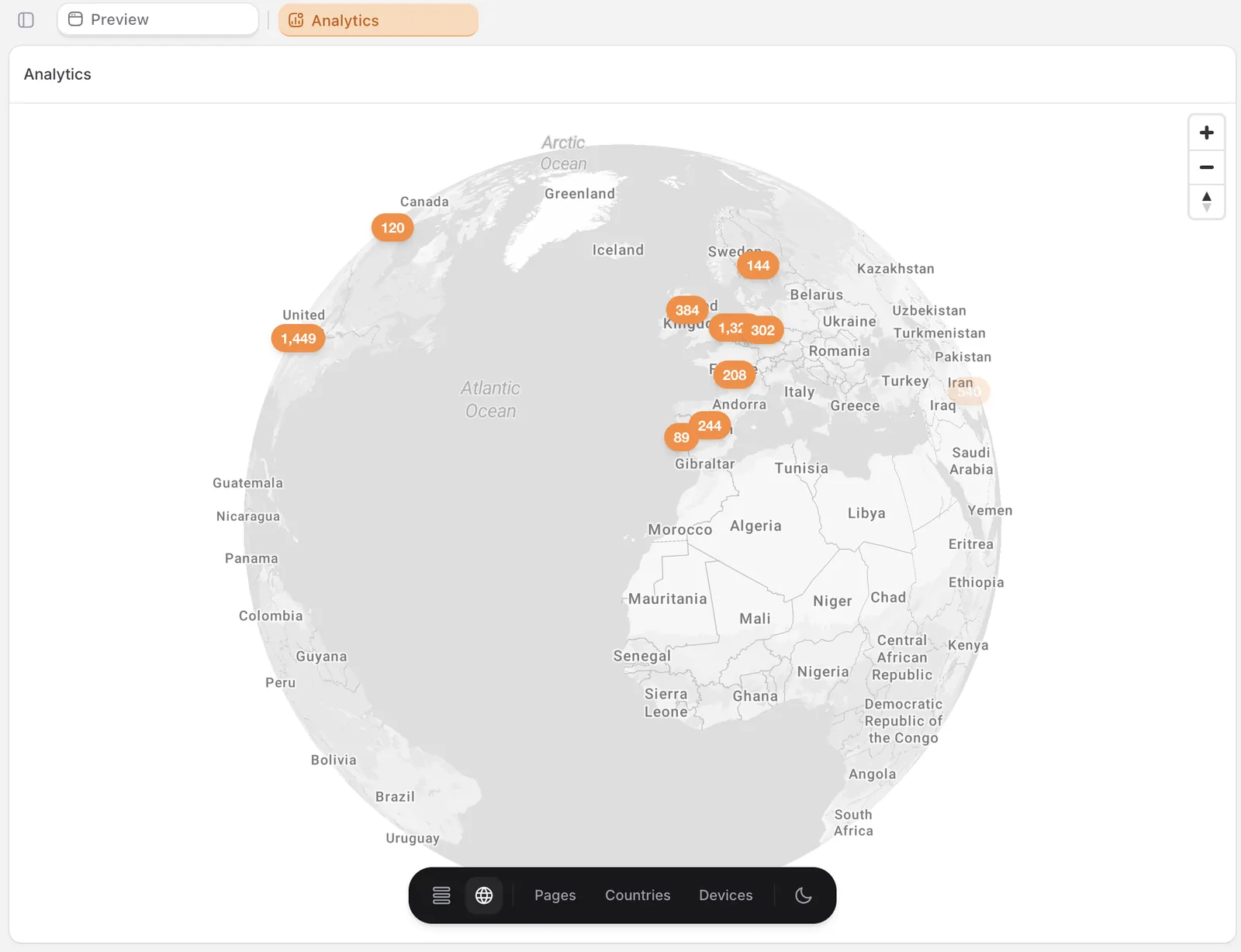
- Locations and devices breakdowns
- Engagement: avg time on page, bounce rate, pages per visitor, and the most engaging page
Track custom events
Page views are pre-wired, but if you want to track specific actions like a Sign Up click, a checkout completion, or a plan selection, you can. Open chat and describe what you want to track. For example:- “Track a custom event when someone clicks the Sign Up button on the landing page.”
- “Add tracking for the Buy button on the checkout page, including which plan was selected.”
- “Track when a user marks a recipe as favorite.”
- If you want to define the event name yourself, your prompt should include a short, descriptive name like
sign_up_clickedorcheckout_completed. Avoid generic names likeclickorbutton, since the dashboard can’t tell sign-up clicks from checkout clicks if they share a name. - In your prompt, include two or three relevant details, like: which item, which plan, which source. Biscuit handles this automatically when you describe the action specifically.
FAQ
Do I need to set up Google Analytics or any other tool?
Do I need to set up Google Analytics or any other tool?
No. Analytics ships with every Biscuit app. The data shows up in the project side nav as soon as your app starts getting traffic.
Why is the Things people do panel empty?
Why is the Things people do panel empty?
That panel only fills once you start tracking custom events. Ask Biscuit to track any action you want to count beyond page views (button clicks, form submits, conversions).
Up next
Sending emails
Trigger emails on signup, milestones, or schedules.
Receiving emails
Your app has its own email address.
Build your first project
From prompt to a live app on a custom domain.