

Default data models
Every app starts with a built-inUser model so authentication and identity work out of the box. Biscuit adds whatever else your app needs. A notes app gets a Notes model, a job-board app gets Jobs and Applications models, and so on.
You don’t need a separate model for uploads. Images, PDFs, and attachments are handled as a built-in asset type, not as a model you define.
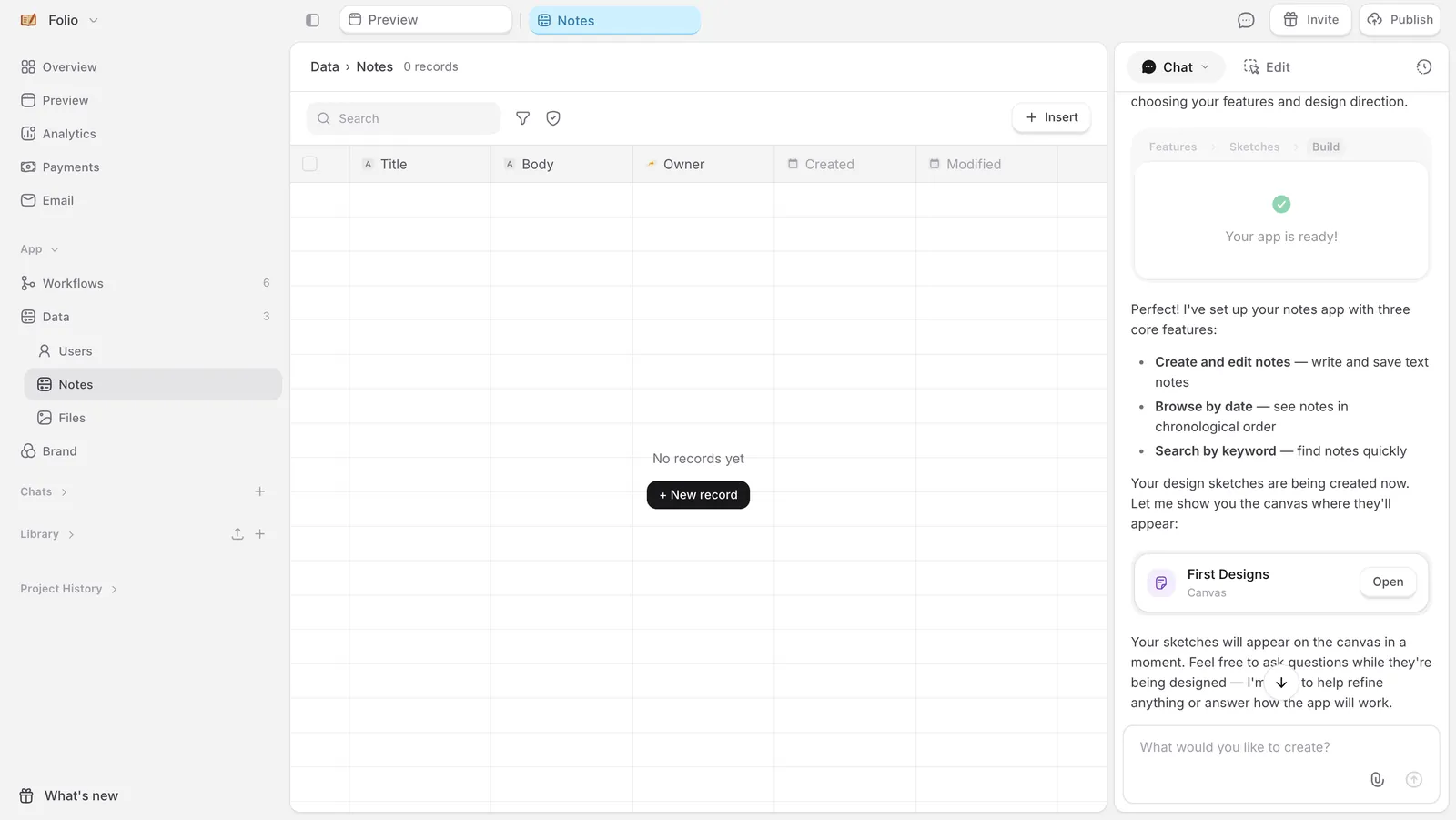
Viewing your data
In the side navigation, App → Data. The page shows every data model in your app. Click any model to open it. Each model opens in a spreadsheet-like table view by default. Every row is a record, every column is a field. Use it for scanning data and bulk edits. For editing one record at a time with all its relationships visible, click Generate custom view to get a form-style detail pane.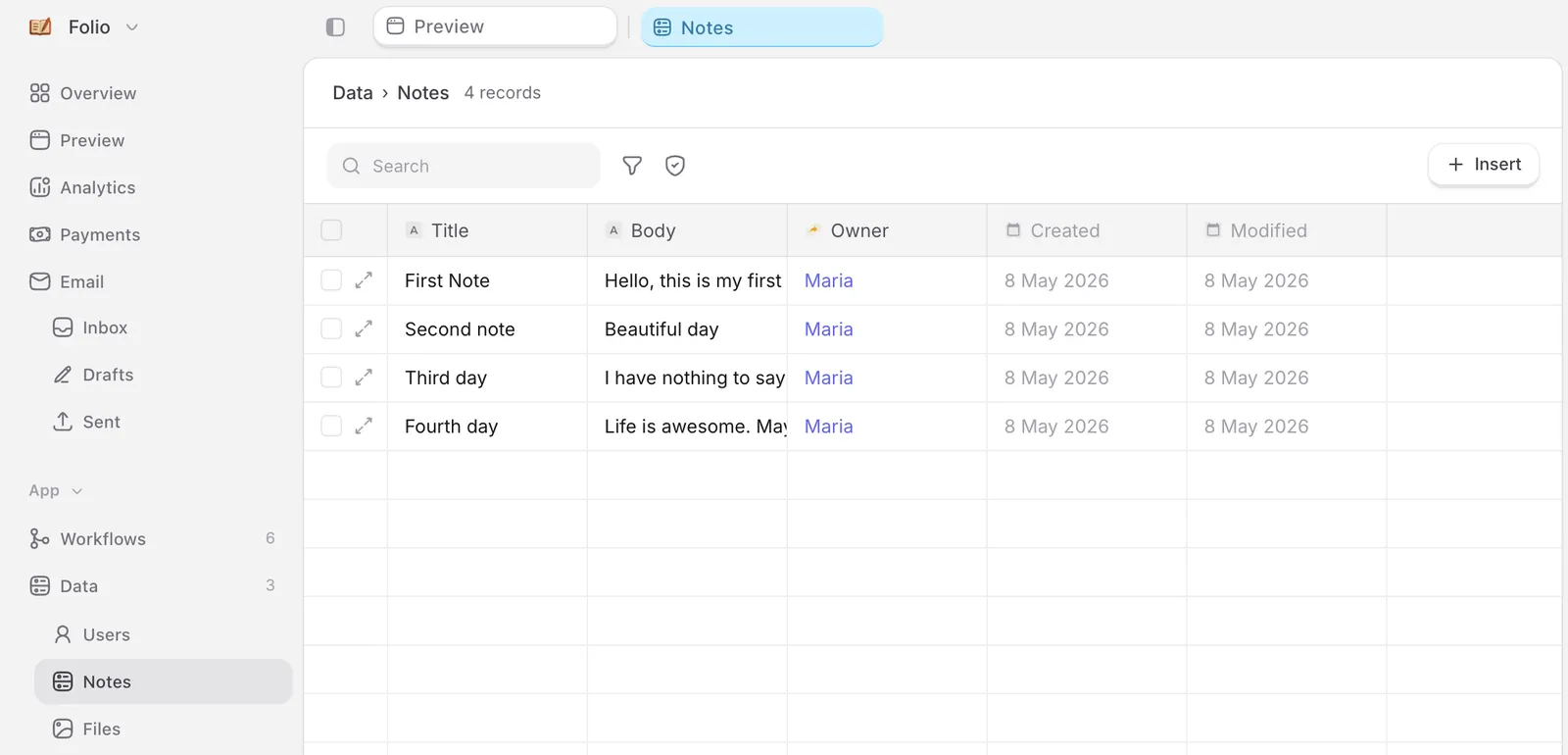
Editing records
Modify or delete records by selecting them individually or in bulk. Changes save immediately and apply to your live app.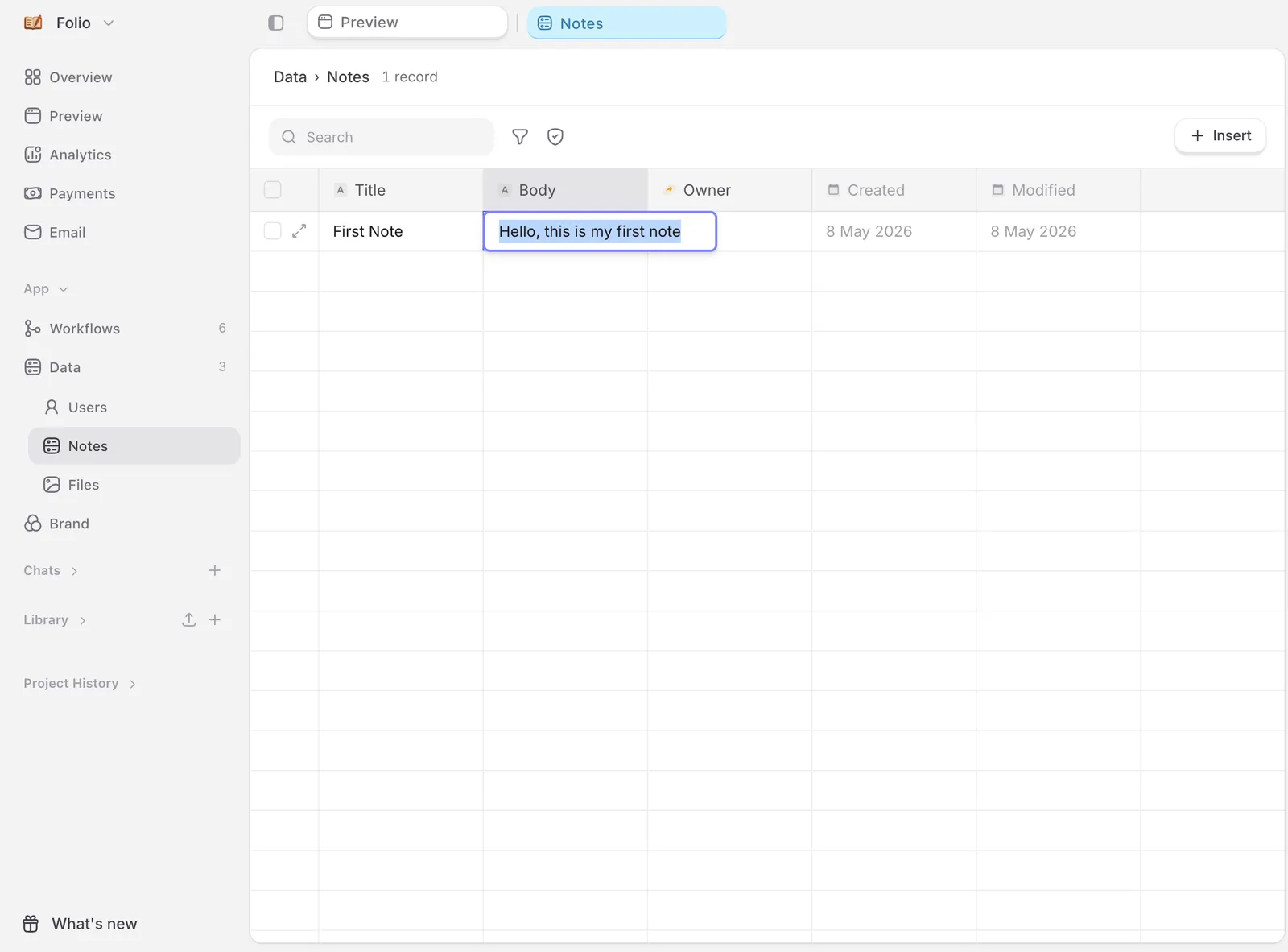
Permissions
The permissions icon next to the table view shows the full permission list for the model: who can read, write, and delete records. Change them by clicking Change in chat and continuing the conversation in chat.Important to know
Up next
Workflows
The logic of your app, drawn so you can see and change it.
Connecting external APIs
Pull live data from any service into your app.
Build your first project
From prompt to a live app on a custom domain.