

Apps don’t always stay with the team that built them. Maybe another team now uses an app the most, or the team that built it has changed. You can move an app to a different space, so it lives with the team that owns it now.
Moving an app
- Open the app and click App actions in the top-right corner.
- Select Move to space.
- Choose the space you want to move the app to.
- Review the message about what will be shared with the new space (see below).
- Click Move.
Anyone who can edit an app can move it, but only to spaces they can build in. Workspace owners can move apps to any team space.
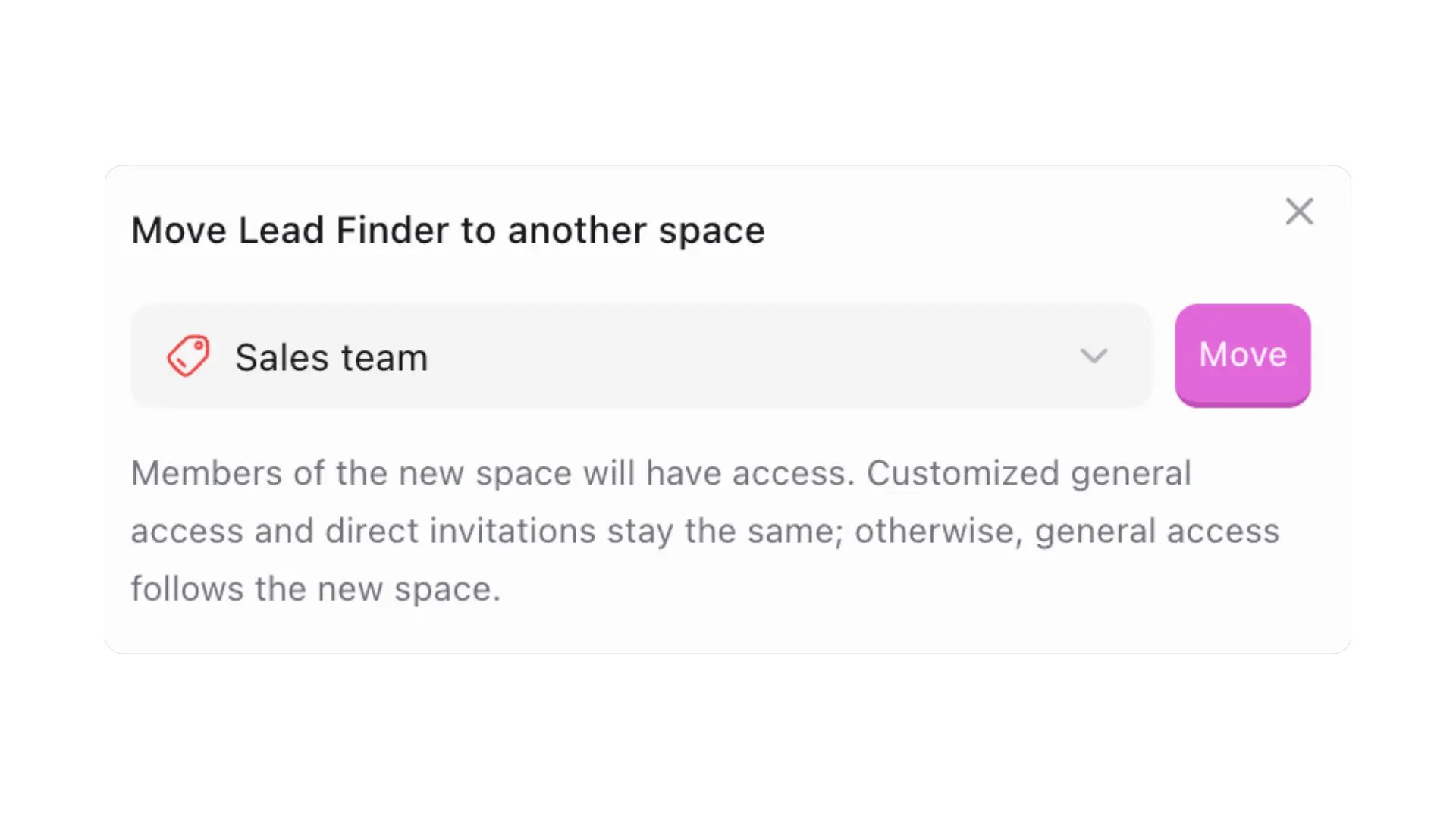
What happens to the app’s data
Some apps use data that lives in their original space. When you move the app, that data stays where it is, and Biscuit shares it with the new space so the app keeps working. Before you confirm, Biscuit shows you:- What app data will be shared with the new space.
- That everyone in the new space will get access to the app.
Who has access after a move
Everyone in the new space gets access to the app. People and spaces you shared the app with directly keep their access. See Sharing apps to change who can use or edit it.Up next
Sharing apps
Give teammates and teams access to an app.
Publishing your app
Make your app available and publish updates.
Access control
See how workspace, space, and app access work together.