> ## Documentation Index
> Fetch the complete documentation index at: https://docs.biscuit.so/llms.txt
> Use this file to discover all available pages before exploring further.
# Workflows: visual triggers and actions in your app
> A workflow is a chain of actions that runs on a trigger. Workflows in Biscuit run on user actions, data changes, schedules, API calls, and navigation events.
A workflow is a chain of actions that runs when something happens: a user signs up, a record updates, a scheduled time arrives. Every Biscuit app has workflows. Biscuit creates them as it builds your app, and you can edit them by chatting with Biscuit.
## Trigger types
Workflows run on five kinds of triggers:
* a user interaction (a click, form submit, or sign-in)
* a data change (a record is created, updated, or deleted)
* a recurring schedule (every Monday at 9am, every hour)
* an API call or webhook from an external service
* a navigation event when a user opens a specific route
For navigation triggers, path patterns support static paths (`/dashboard`), parameters (`/users/:id`), and wildcards (`/admin/*`).
## Steps and actions
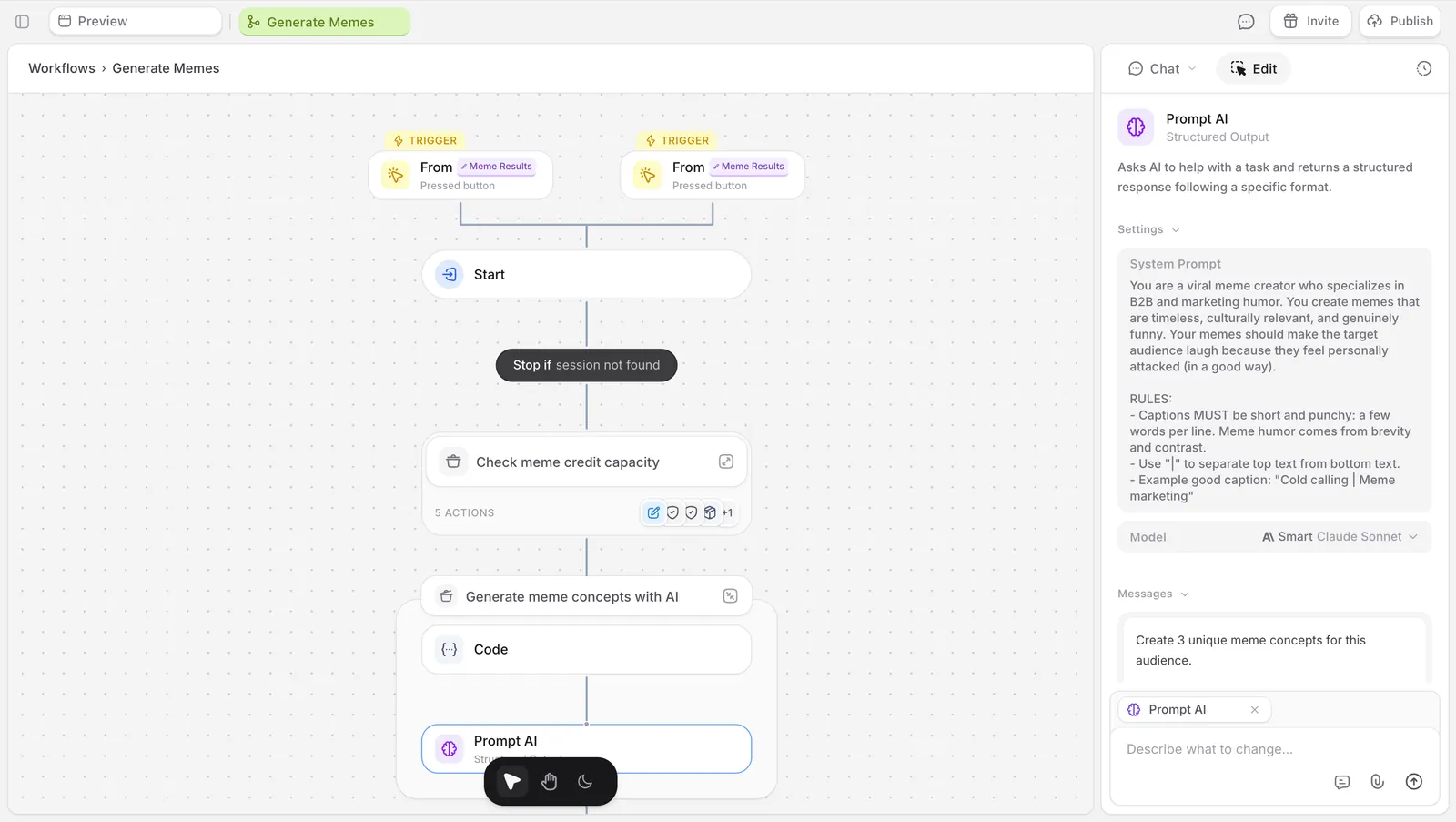
Each workflow has one trigger and one or more actions, called steps. Steps run in order. They can call AI, [send an email](/sending-emails), [write to the database](/data), [fetch from an external API](/apis), or branch based on a condition.
Biscuit visualizes the full chain so you can see what runs, in what order, and what data flows between steps. You don't see code. The logic is rendered as a diagram.
## Editing workflows
Edit any step by selecting it and prompting the change in chat. Examples:
* "change this prompt to focus on health and wellness"
* "switch this image step to nano banana 2"
* "add a condition before this email so it only sends on weekdays"
Biscuit updates the step.
AI-powered steps use whichever model Biscuit picked when the workflow was first generated. Switch models per step from the step's configuration.
## Drafts and republishing
Edits to a workflow create a draft version that runs in your editor preview. Your published app keeps running its previously-published workflow until you click *Update*.
This makes it safe to experiment. You can test a new version of a workflow against your preview without affecting users on your live app.
## Where to find them
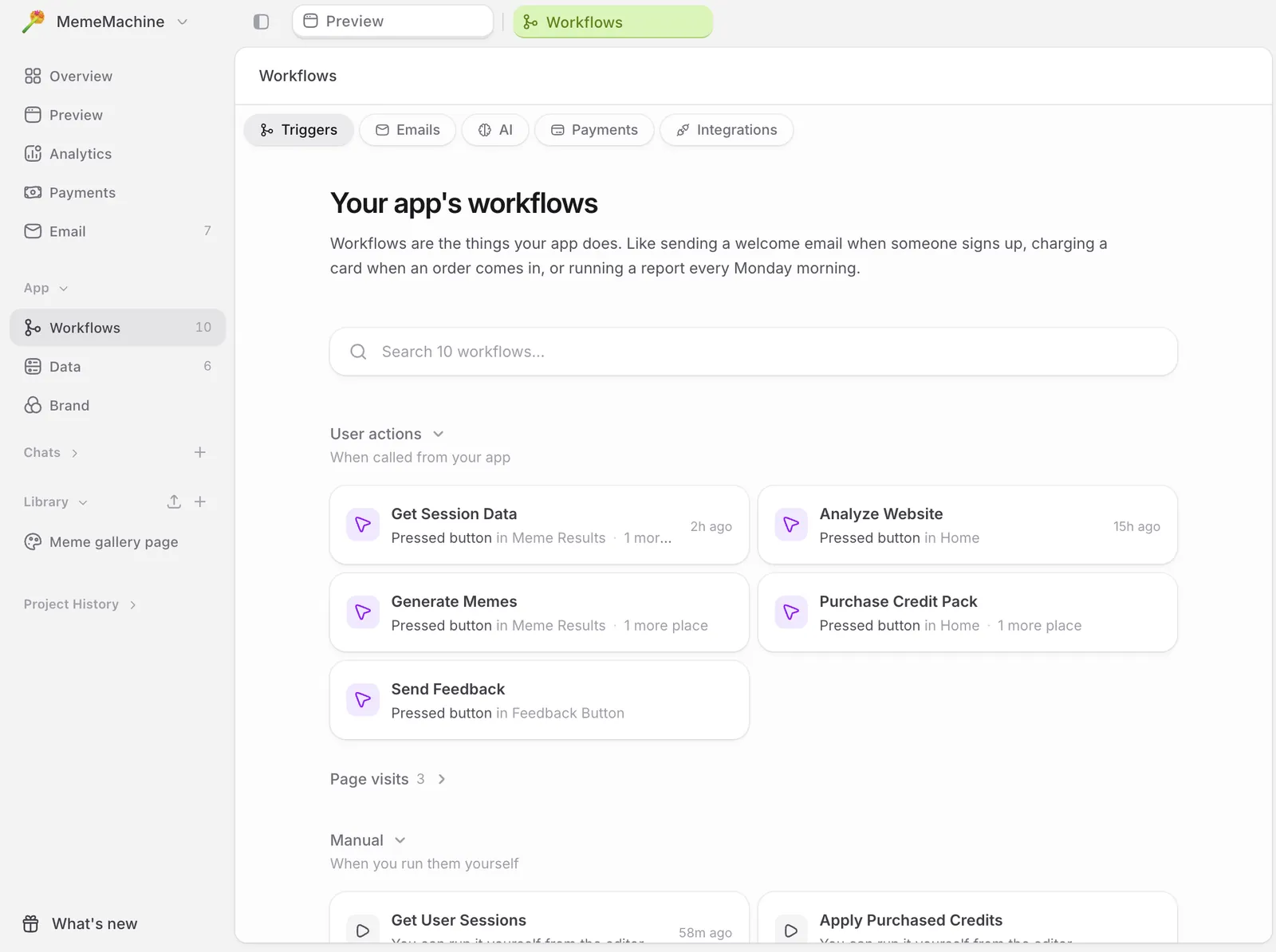
In the side navigation, App → *Workflows*. The page lists every workflow in your app and gives you five ways to browse. *Triggers* (the default) groups workflows by what fires them, using the trigger kinds above. *Emails*, *AI*, *Payments*, and *Integrations* each show only the workflows that involve that capability.
Click any workflow to open it and see the full chain.
## Up next
Trigger emails from your app on signup, milestones, or schedules.
Your app has its own email address.
Every Biscuit app has a built-in database.
 ## Steps and actions
Each workflow has one trigger and one or more actions, called steps. Steps run in order. They can call AI, [send an email](/sending-emails), [write to the database](/data), [fetch from an external API](/apis), or branch based on a condition.
Biscuit visualizes the full chain so you can see what runs, in what order, and what data flows between steps. You don't see code. The logic is rendered as a diagram.
## Steps and actions
Each workflow has one trigger and one or more actions, called steps. Steps run in order. They can call AI, [send an email](/sending-emails), [write to the database](/data), [fetch from an external API](/apis), or branch based on a condition.
Biscuit visualizes the full chain so you can see what runs, in what order, and what data flows between steps. You don't see code. The logic is rendered as a diagram.
 ## Editing workflows
Edit any step by selecting it and prompting the change in chat. Examples:
* "change this prompt to focus on health and wellness"
* "switch this image step to nano banana 2"
* "add a condition before this email so it only sends on weekdays"
Biscuit updates the step.
AI-powered steps use whichever model Biscuit picked when the workflow was first generated. Switch models per step from the step's configuration.
## Drafts and republishing
Edits to a workflow create a draft version that runs in your editor preview. Your published app keeps running its previously-published workflow until you click *Update*.
This makes it safe to experiment. You can test a new version of a workflow against your preview without affecting users on your live app.
## Where to find them
In the side navigation, App → *Workflows*. The page lists every workflow in your app and gives you five ways to browse. *Triggers* (the default) groups workflows by what fires them, using the trigger kinds above. *Emails*, *AI*, *Payments*, and *Integrations* each show only the workflows that involve that capability.
Click any workflow to open it and see the full chain.
## Up next
## Editing workflows
Edit any step by selecting it and prompting the change in chat. Examples:
* "change this prompt to focus on health and wellness"
* "switch this image step to nano banana 2"
* "add a condition before this email so it only sends on weekdays"
Biscuit updates the step.
AI-powered steps use whichever model Biscuit picked when the workflow was first generated. Switch models per step from the step's configuration.
## Drafts and republishing
Edits to a workflow create a draft version that runs in your editor preview. Your published app keeps running its previously-published workflow until you click *Update*.
This makes it safe to experiment. You can test a new version of a workflow against your preview without affecting users on your live app.
## Where to find them
In the side navigation, App → *Workflows*. The page lists every workflow in your app and gives you five ways to browse. *Triggers* (the default) groups workflows by what fires them, using the trigger kinds above. *Emails*, *AI*, *Payments*, and *Integrations* each show only the workflows that involve that capability.
Click any workflow to open it and see the full chain.
## Up next