> ## Documentation Index
> Fetch the complete documentation index at: https://docs.biscuit.so/llms.txt
> Use this file to discover all available pages before exploring further.
# Working with data: your app's built-in database
> Every Biscuit app has a built-in database. Biscuit creates the models, files are handled out of the box, and records open in a spreadsheet view.
When you describe your app in chat, Biscuit works out the data models you need and creates them automatically. You don't need to design tables before you start, or write schemas. You can make changes to the data models at any time by talking to Biscuit in chat.
## Default data models
Every app starts with a built-in `User` model so authentication and identity work out of the box. Biscuit adds whatever else your app needs. A notes app gets a Notes model, a job-board app gets Jobs and Applications models, and so on.
You don't need a separate model for uploads. Images, PDFs, and attachments are handled as a built-in asset type, not as a model you define.
 ## Viewing your data
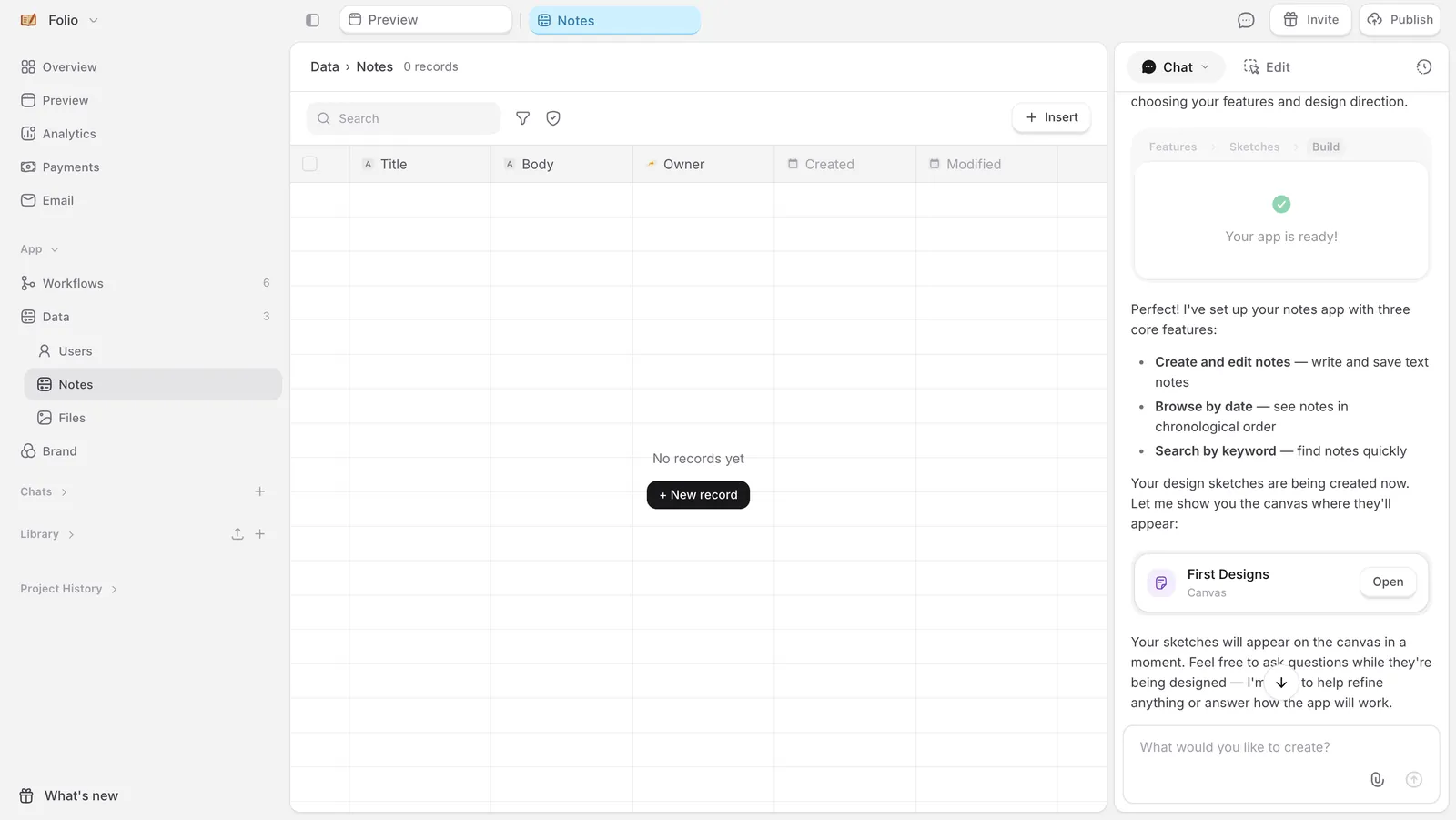
In the side navigation, App → *Data*. The page shows every data model in your app. Click any model to open it.
Each model opens in a spreadsheet-like table view by default. Every row is a record, every column is a field. Use it for scanning data and bulk edits.
For editing one record at a time with all its relationships visible, click *Generate custom view* to get a form-style detail pane.
## Viewing your data
In the side navigation, App → *Data*. The page shows every data model in your app. Click any model to open it.
Each model opens in a spreadsheet-like table view by default. Every row is a record, every column is a field. Use it for scanning data and bulk edits.
For editing one record at a time with all its relationships visible, click *Generate custom view* to get a form-style detail pane.
 ## Editing records
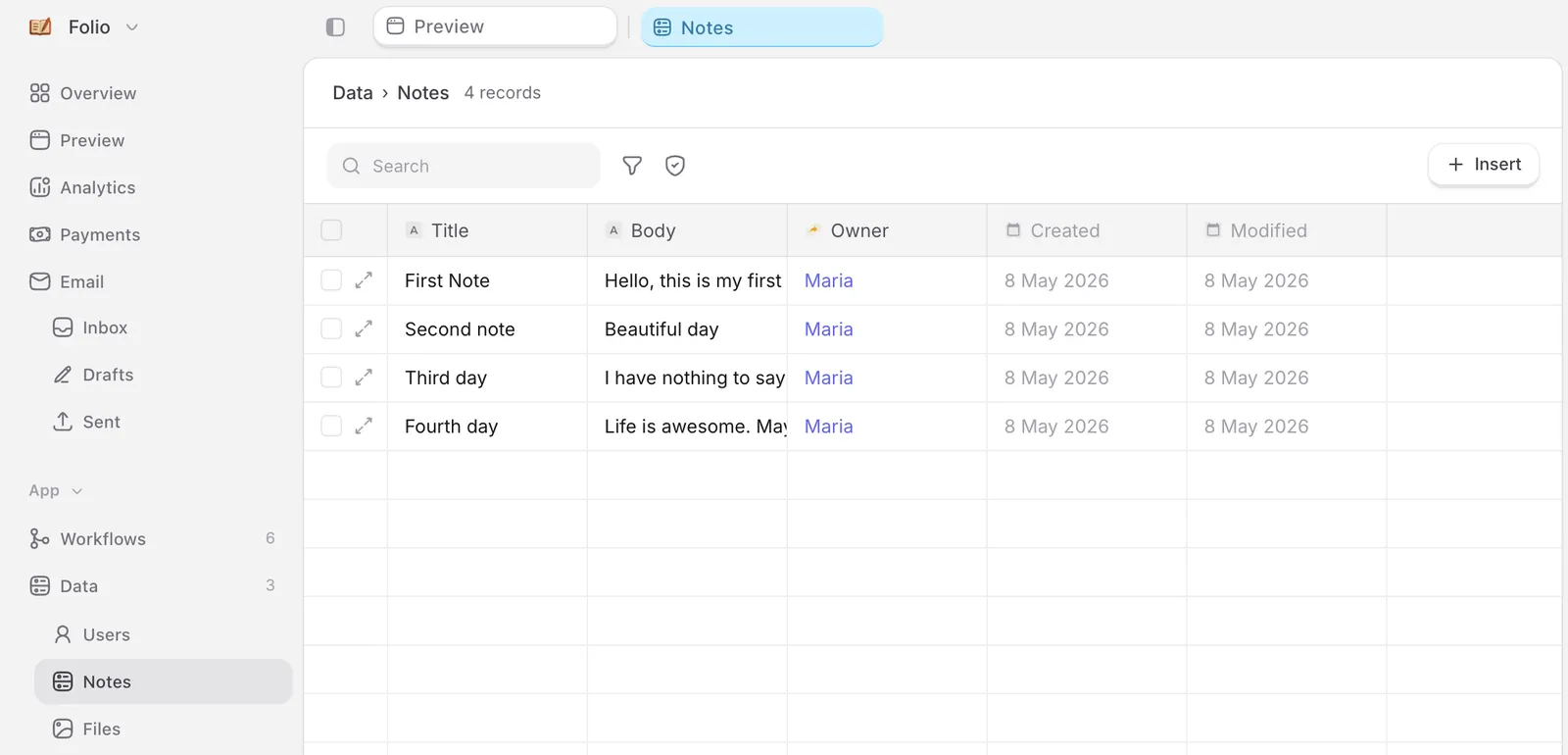
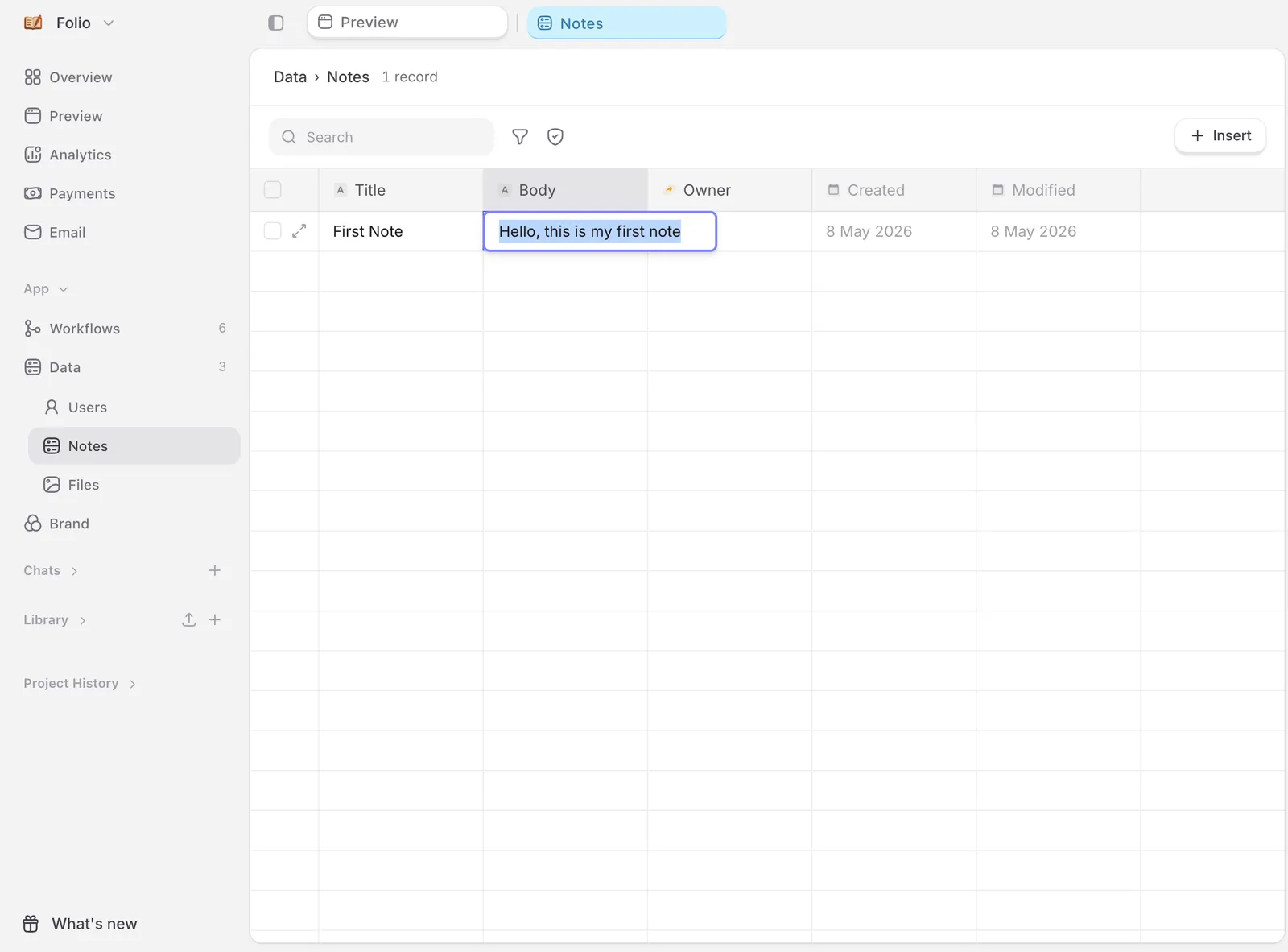
Modify or delete records by selecting them individually or in bulk. Changes save immediately and apply to your live app.
If you see a padlock icon next to a data field, click that icon and then click on *Unfreeze column* to allow the field to be updated manually; this is a built-in guardrail against accidental modification.
## Editing records
Modify or delete records by selecting them individually or in bulk. Changes save immediately and apply to your live app.
If you see a padlock icon next to a data field, click that icon and then click on *Unfreeze column* to allow the field to be updated manually; this is a built-in guardrail against accidental modification.
 ## Permissions
The permissions icon next to the table view shows the full permission list for the model: who can read, write, and delete records. Change them by clicking *Change in chat* and continuing the conversation in chat.
## Important to know
Changes to Data go live instantly. There's no separate publish step for data, the way there is for app structure or [workflows](/workflows). If your app is live, anyone using it will see your changes immediately. Be careful when editing records on a live app.
## Up next
The logic of your app, drawn so you can see and change it.
Pull live data from any service into your app.
From prompt to a live app on a custom domain.
## Permissions
The permissions icon next to the table view shows the full permission list for the model: who can read, write, and delete records. Change them by clicking *Change in chat* and continuing the conversation in chat.
## Important to know
Changes to Data go live instantly. There's no separate publish step for data, the way there is for app structure or [workflows](/workflows). If your app is live, anyone using it will see your changes immediately. Be careful when editing records on a live app.
## Up next
The logic of your app, drawn so you can see and change it.
Pull live data from any service into your app.
From prompt to a live app on a custom domain.